# Publish HTML from ChatGPT to Revdoku
> Turn an HTML page or mini-site generated by ChatGPT into a live Revdoku link with password access, file viewers, and analytics.
ChatGPT can help create small websites, reports, demos, charts, landing pages, and client review packets. The output often starts as one HTML file, then grows into a folder with CSS, JavaScript, images, Markdown notes, CSV data, and PDFs.
This tutorial shows how to turn that generated folder into a shareable Revdoku link.
## When this workflow fits
Use this workflow when ChatGPT creates:
- A static `index.html` page.
- A mini landing page.
- A product or proposal mockup.
- A data report with charts.
- A document comparison summary.
- A small dashboard.
- A client review packet.
- A mixed folder with HTML, Markdown, CSV, PDF, and images.
Use a developer hosting platform instead if the project is becoming a maintained app with build commands, backend code, environment variables, and a production deployment pipeline.
## 1. Ask ChatGPT for a folder, not only a snippet
For publishing, a folder is easier to manage than loose code blocks.
Example prompt:
```text
Create a static HTML review page for this project.
Return the files as a small folder structure:
- index.html
- styles.css
- app.js if JavaScript is needed
- README.md explaining the files
- data/sample.csv if you create structured data
Use relative paths only.
Do not reference local files from my computer.
Do not include secrets, API keys, or private customer data.
```
If ChatGPT cannot create files directly in your environment, copy the code into files with the same names.
## 2. Check the generated files locally
Before publishing, open the folder and check:
- `index.html` exists.
- CSS and JavaScript paths are relative.
- Images load.
- Links work.
- There are no `.env` files.
- There are no private paths such as `/Users/name/...`.
- There are no secrets or tokens.
- Any sample data is safe to share.
For a simple HTML page, double-clicking `index.html` may be enough. For a more complex app, run a local static server and test in a browser.
## 3. Organize the folder for reviewers
A clean review folder might look like this:
```text
chatgpt-review-site/
index.html
styles.css
app.js
README.md
data/
summary.csv
docs/
source-notes.pdf
assets/
chart.webp
```
Keep the homepage at `index.html`. Use clear names for data and documents. If the folder includes source notes, put them where a reviewer can find them.
## 4. Upload the folder to Revdoku
In Revdoku:
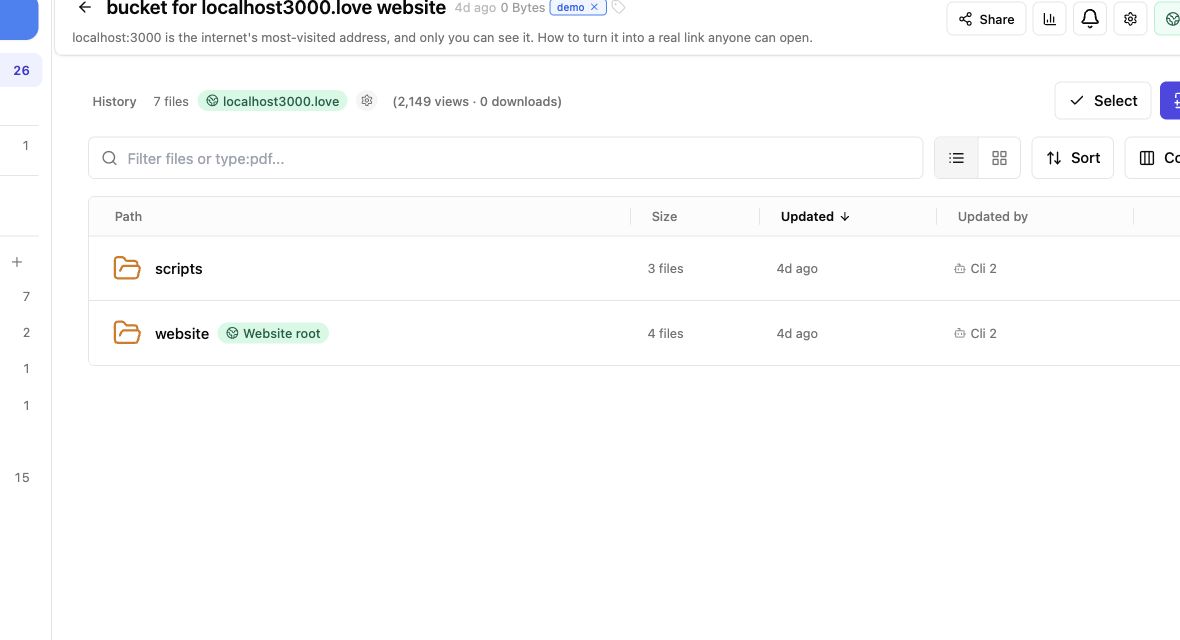
1. Create or open a bucket.
2. Upload the generated folder.
3. Confirm the file tree looks right.
4. Open the generated files from the bucket to check that the important files are present.
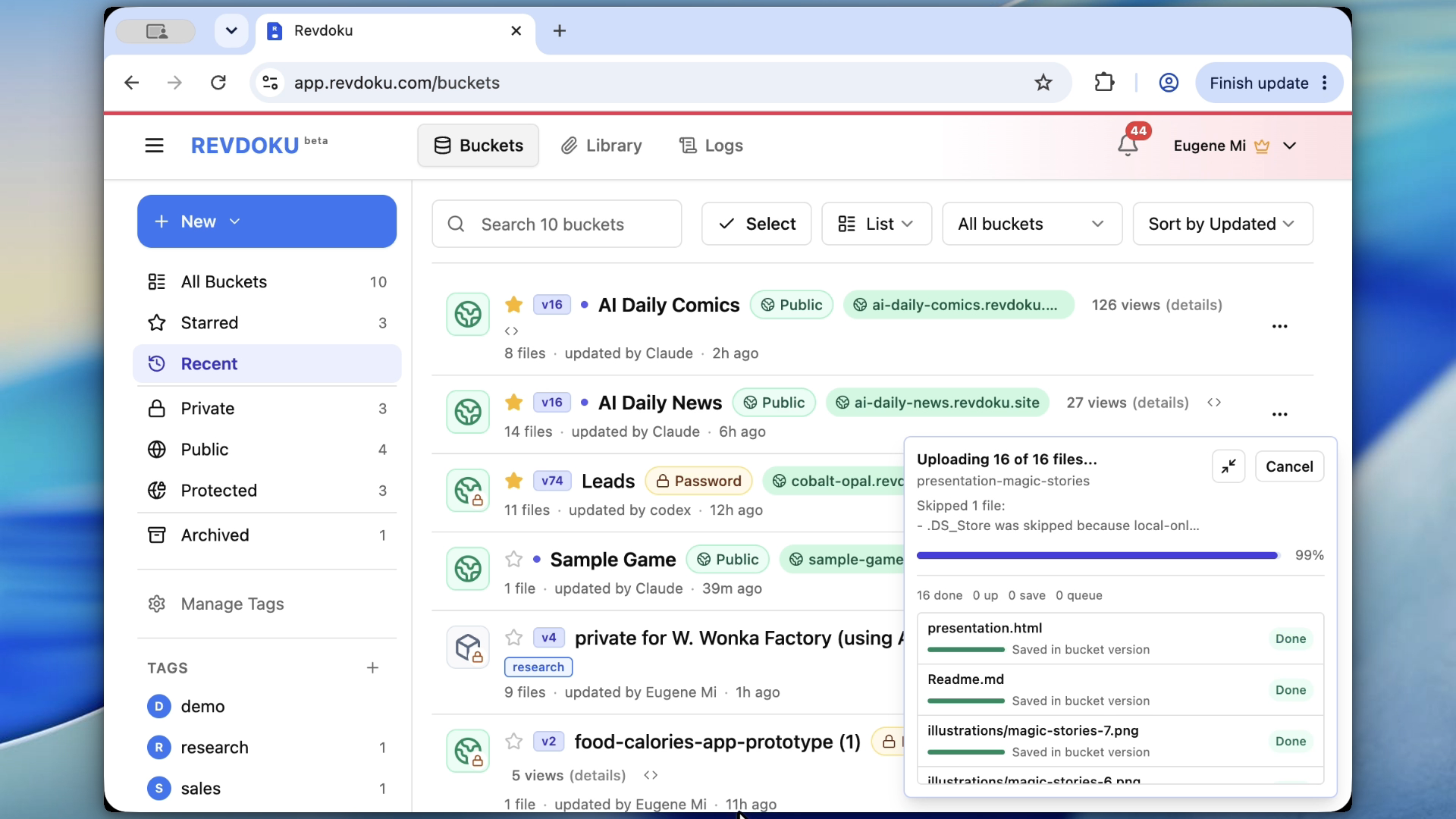
Revdoku is useful here because the output can stay as a folder. You do not need to convert every supporting file into a custom website route.
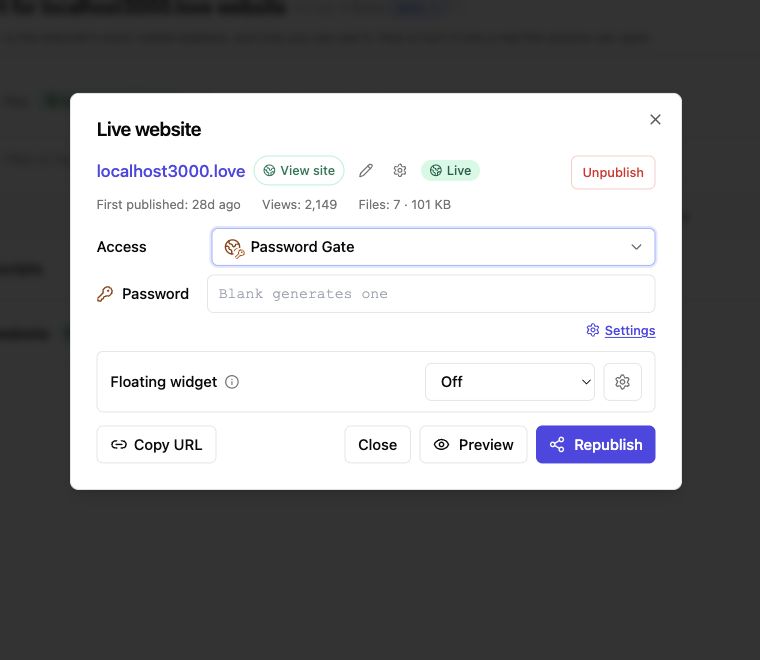
## 5. Publish the bucket as a website
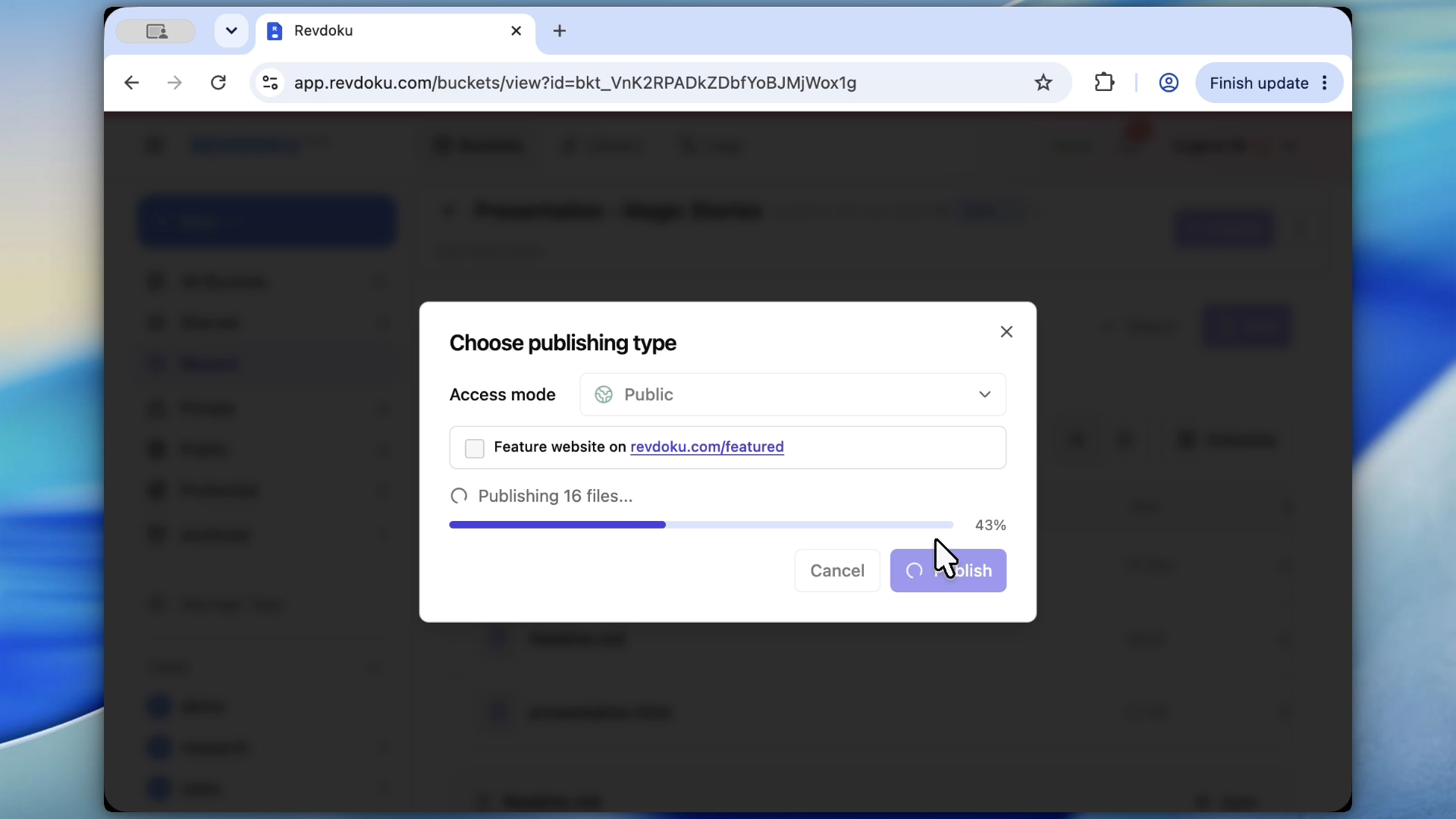
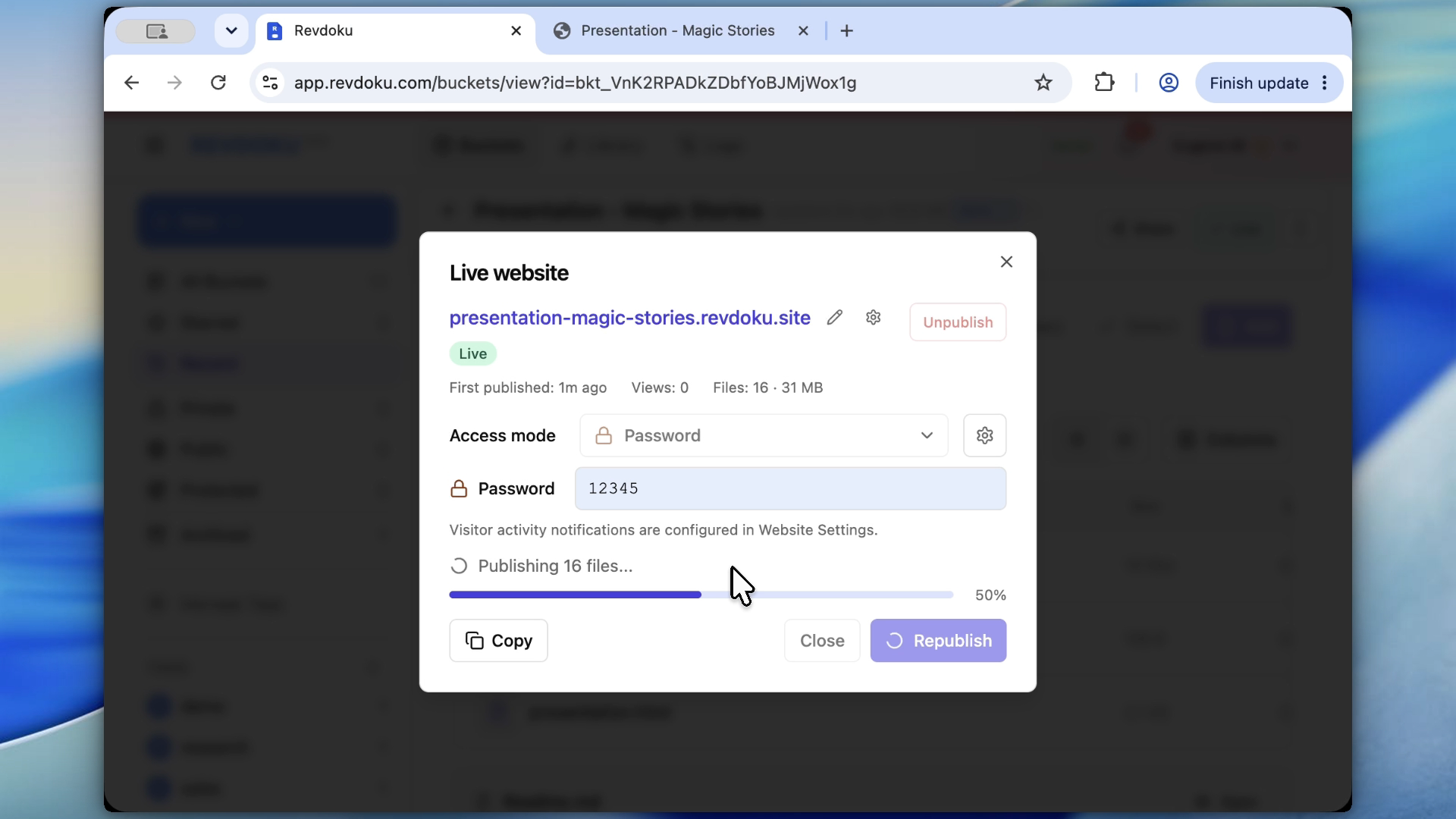
Publish the bucket as a site and choose the URL settings.
Use:
- A public link for examples, demos, and open documentation.
- A password gate for client review.
- Require Email when you need to know who accessed the packet. Visitors enter a one-time email code, not a shared password. For plan details, see [access modes](/blog/how-to-choose-the-right-website-access-mode-in-revdoku/).
- A custom domain when the page should live under a branded URL.
## 6. Share and watch analytics
After publishing:
1. Open the live URL yourself.
2. Test it in a private browser window.
3. Send the link to reviewers.
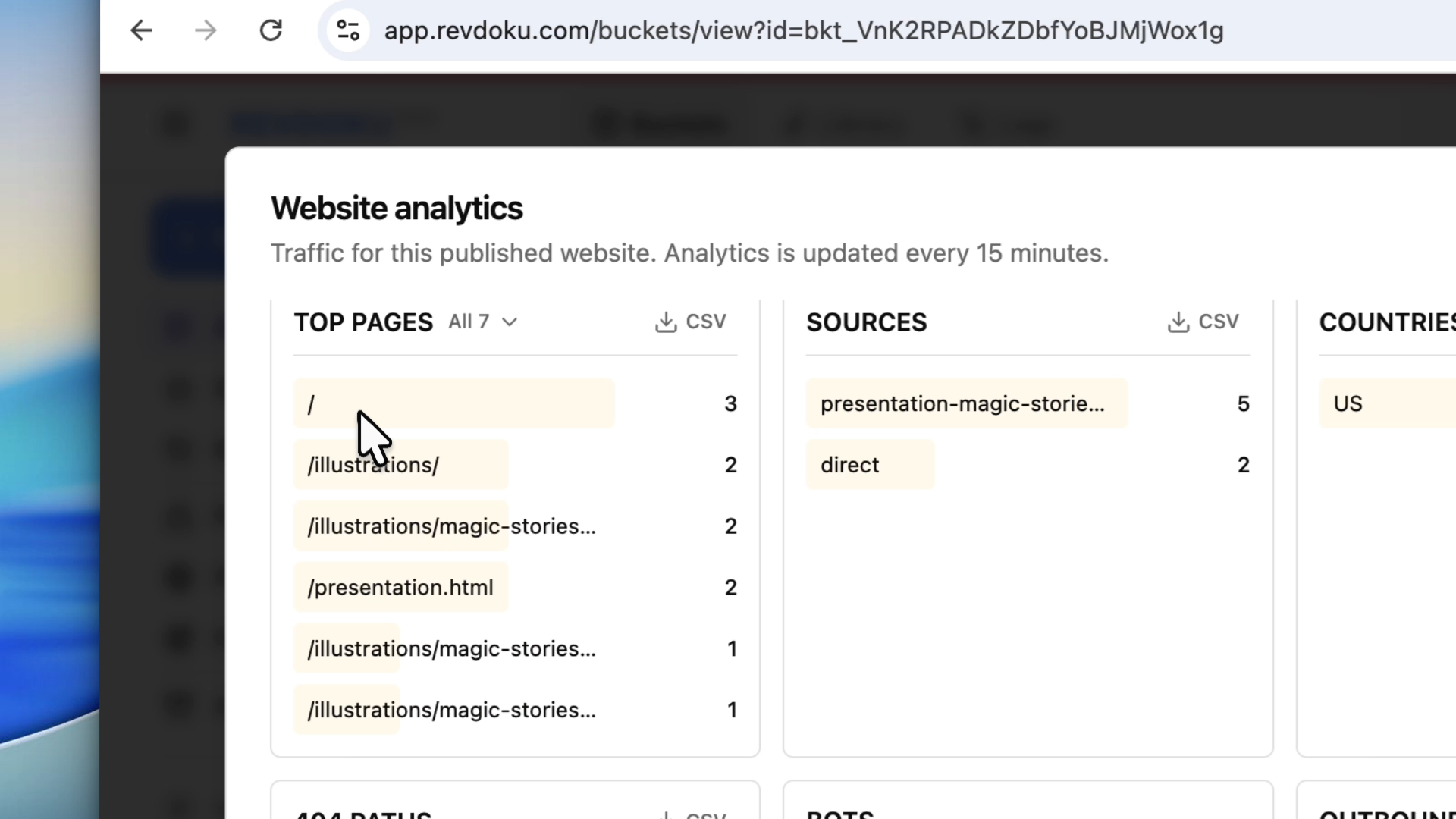
4. Watch analytics after people open it.
5. Update the folder if ChatGPT revises the page.
## Example: document comparison packet
Suppose ChatGPT compares two policy drafts and creates:
```text
policy-comparison/
index.html
README.md
comparison-summary.md
data/change-log.csv
docs/original.pdf
docs/revised.pdf
```
Revdoku can publish the HTML summary while still letting reviewers open the Markdown, CSV, and PDF files in the same folder.
That is the main advantage over treating the output as only a web page. The deliverable is the whole file packet.
## Update and republish from the same chat
After you first publish the site, you can ask ChatGPT to update the existing HTML file in Revdoku. This keeps the site URL stable while changing the content your client sees.
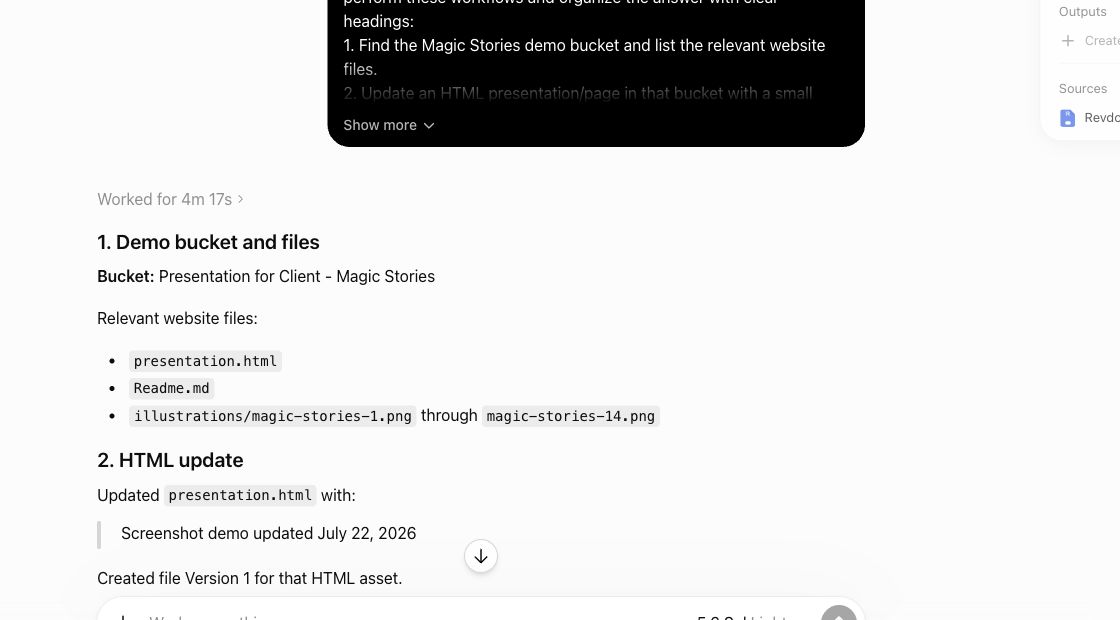
When the update is ready, ask ChatGPT to republish the website and check the analytics for the same demo site.
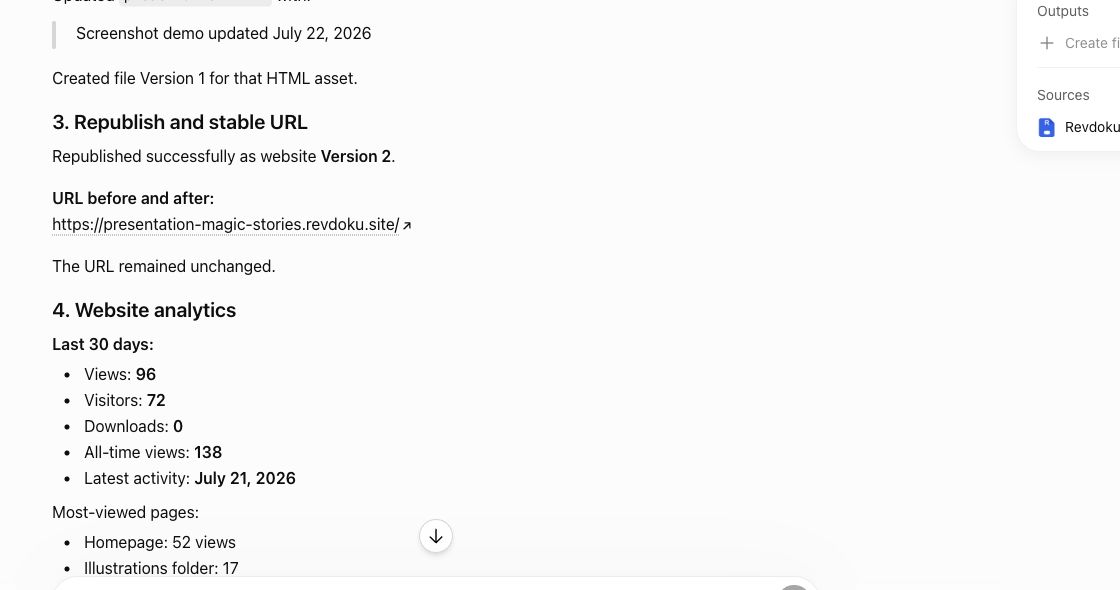
ChatGPT can create the HTML. Revdoku makes the result shareable.
Use this workflow when the next step is not "operate a web app." The next step is "publish this generated folder, protect it if needed, and let people review it."
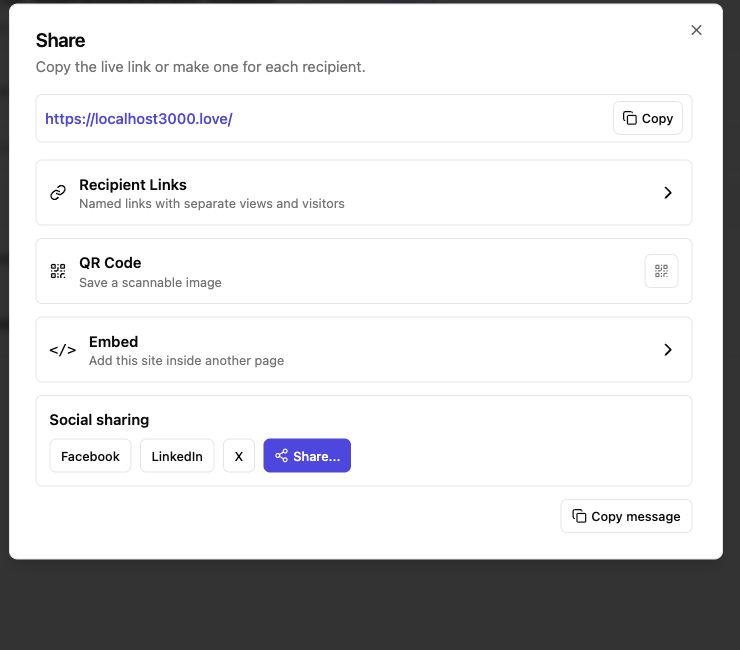
## Revdoku workflow screenshots
## Sources checked
- OpenAI ChatGPT product context: https://chatgpt.com
Just ask to “publish to Revdoku” to
publish your HTML pages presentation dashboard app prototype game prototype
as a fast and secure website
from your Codex , Claude or another AI app publish files or folders
Connect
Skill
MCP
Paste this into your AI app.
Copy
Install the Revdoku skill in your AI app.
Copy
npx skills add revdoku/revdoku --skill revdoku -g
Choose your AI app to connect through MCP.
Codex CLI
Claude Code
Other
Copy codex mcp add revdoku --url https://app.revdoku.com/mcp
codex mcp login revdoku
Copy claude mcp add --transport http revdoku https://app.revdoku.com/mcp
claude mcp login revdoku
Transport Streamable HTTP Auth Browser OAuth
Copy https://app.revdoku.com/mcp
Open the MCP setup guide →
Free · Public or protected · Visitor analytics · Forms and email alerts Building websites for clients? Explore Revdoku for agencies →
---
[View the canonical page](https://revdoku.com/blog/publish-html-from-chatgpt-to-revdoku/) · [Browse llms.txt](https://revdoku.com/llms.txt)