Codex CLI Remote Control: Setup, Security & Access
Table of Contents
- Codex CLI remote control needs a clear boundary
- What Codex CLI remote control and Codex Remote Control actually mean
- How to start Codex CLI remote control
- What to do when Codex Mobile is disabled by your workspace admin
- Understanding “allow this device to be discovered and controlled by Codex” prompts
- Authentication, networks, and the real security boundary
- Four practical Codex CLI remote control workflows
- From agent output to controlled client sharing
- Troubleshooting Codex CLI remote control and safer operating habits
- Codex CLI remote control needs a clear boundary
- What Codex CLI remote control and Codex Remote Control actually mean
- How to start Codex CLI remote control
- What to do when Codex Mobile is disabled by your workspace admin
- Understanding “allow this device to be discovered and controlled by Codex” prompts
- Authentication, networks, and the real security boundary
- Four practical Codex CLI remote control workflows
- From agent output to controlled client sharing
- Troubleshooting Codex CLI remote control and safer operating habits
Codex CLI remote control needs a clear boundary
Codex CLI remote control sounds simple: securely steer a remote coding agent from another computer. The reality is more layered. Codex now has an experimental CLI command named codex remote-control, while the ChatGPT desktop and mobile apps provide a separate Remote experience. They overlap, but are not interchangeable.
The distinction matters when a phone cannot connect, a workspace blocks mobile access, or an operating system requests device discovery, especially when the host holds client files, credentials, or production access.
TL;DR: This guide explains what exists as of July 19, 2026, how authentication and administration affect access, and the Codex CLI security boundary. It also covers client workflows in which Codex prepares deliverables and Revdoku handles controlled sharing, open notifications, analytics, and feedback.
- Status date: July 19, 2026
- Primary sources: current OpenAI command and remote-connection documentation
- Audience: people comfortable with AI tools who may not be full-time programmers
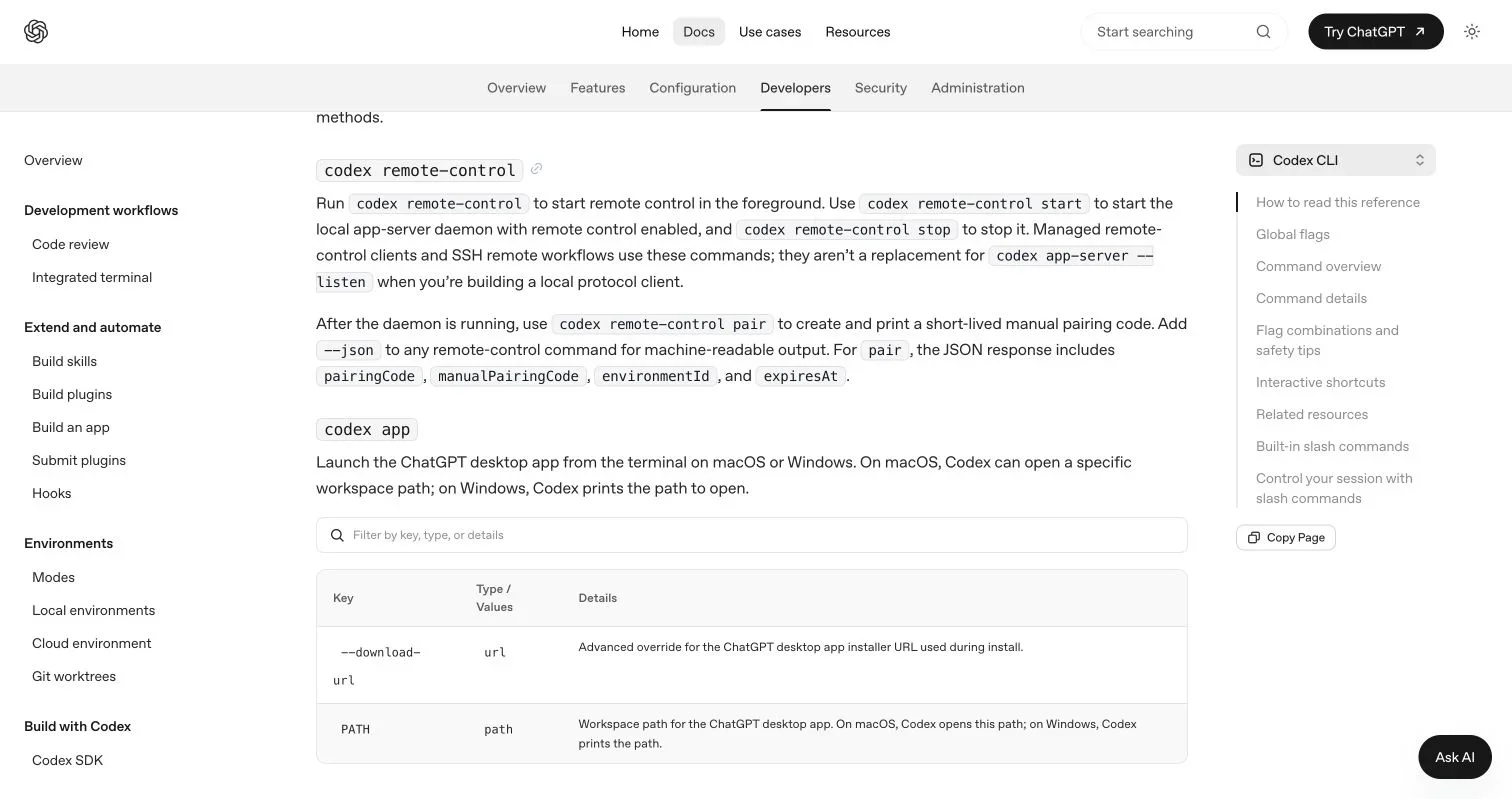
Screenshot of https://learn.chatgpt.com/docs/developer-commands?surface=cli#cli-codex-remote-control, made on July 19, 2026.
What Codex CLI remote control and Codex Remote Control actually mean
Codex CLI remote control can describe two related capabilities. The experimental codex remote-control command manages remote control for a local Codex app server and can create a short-lived pairing code. ChatGPT Remote lets a supported phone or desktop device work with chats on a connected host.
OpenAI’s CLI command reference says managed remote-control clients and SSH workflows use the CLI commands, but the Remote connections guide says phone setup begins in the ChatGPT desktop app. It cannot be initiated from the Codex CLI or IDE extension.
| Capability | Where setup starts | Main purpose | Current status |
|---|---|---|---|
codex remote-control |
Terminal | Run the local daemon or create a pairing code | Experimental |
| ChatGPT Remote on mobile | ChatGPT desktop app | Start, continue, review, and approve host-based work | Rollout-dependent |
--remote CLI option |
Terminal | Connect a CLI command to an app-server endpoint | Documented CLI option |
| SSH host connection | Desktop app and SSH configuration | Work against a remote filesystem and shell | Supported workflow |
Think of the phone or second computer as the steering wheel and the connected host as the engine. Its files, credentials, tools, sandbox settings, and approvals continue to govern the work.
How to start Codex CLI remote control
The official CLI flow is straightforward. A homemade remote-access tunnel can quickly become a security problem.
-
Run
codex remote-controlto keep remote control in the foreground. Use this to test or watch the process. -
Run
codex remote-control startto run the local app-server daemon with remote control enabled. -
Run
codex remote-control pairafter starting the daemon to create a short-lived pairing code. Add--jsonwhen another program needs structured output. -
Run
codex remote-control stopto stop accepting remote-control connections.
For pair, the JSON response contains four documented fields:
pairingCodemanualPairingCodeenvironmentIdexpiresAt
Source screenshot: the current OpenAI Developer commands page, captured July 19, 2026. Open the linked image target to view the live source and check for later changes.
The command reference also warns that this workflow is not a substitute for codex app-server --listen when someone is building a local protocol client. Use the remote-control command for managed pairing. Use the app-server interface when developing a client, provided you understand its transport and authentication requirements.
What to do when Codex Mobile is disabled by your workspace admin
If you see “Codex Mobile is disabled by your workspace admin,” treat it as a policy result, not a pairing bug. Reinstalling, generating another QR code, or changing Wi-Fi will not override an administrator’s restriction.
OpenAI documents an admin-enforced allow_remote_control setting. When it is set to false, managed users cannot use device remote control. If the setting is omitted, remote control remains subject to normal product availability. An administrator may need to enable Remote Control before a member can connect by phone.
| Symptom | Most likely layer | What to do |
|---|---|---|
| “Codex Mobile is disabled by your workspace admin” | Workspace or managed-device policy | Ask the workspace owner or admin to review Remote Control access |
| Remote is absent from the phone | App version, account eligibility, or rollout | Update ChatGPT and confirm Codex access |
| Host does not appear | Pairing, account, workspace, or host availability | Confirm both devices use the same account and workspace |
| Approval never reaches the phone | Stale pairing or wrong workspace | Open Remote, pair again, and check admin access |
| Remote Control is off after sign-in | Expected sign-out behavior | Turn Remote Control on again after authenticating |
The admin should review the restriction while preserving appropriate Codex CLI security controls. Remote Control availability, sandbox permissions, command approvals, filesystem limits, and network policy are separate layers. A team may allow mobile supervision while requiring approval for risky commands and blocking sensitive directories.
OpenAI records a migration date: connections unused since June 8, 2026 may require app updates and renewed pairing. Connections used since that date should remain paired, according to the current documentation.
Understanding “allow this device to be discovered and controlled by Codex” prompts
“Allow this device to be discovered and controlled by Codex” may conflate three prompts with different powers: operating-system discovery permission, a ChatGPT host connection setting, and Codex action approval.
An OS network-discovery prompt may let an app find or communicate with local devices. The ChatGPT desktop setting Allow other devices to connect makes the host available through the supported Remote flow. A Codex approval prompt authorizes a particular command or action. Accepting one does not silently grant the others.
| Boundary | What it permits | What it does not automatically permit |
|---|---|---|
| Device discovery | Local device visibility or communication allowed by the OS | Reading every file or running arbitrary commands |
| Remote host connection | An authorized device can access host-backed chats | Bypassing the host sandbox or approval policy |
| Command approval | One action, or a defined class of actions, may proceed | Permanent unrestricted remote access |
| Filesystem policy | Read or write access to specified locations | Network access to arbitrary domains |
| Network policy | Connections allowed by the active rules | Access to credentials outside the permitted environment |
When “allow this device to be discovered and controlled by Codex” appears, read the full dialog and identify the issuing application. Do not approve it merely because it mentions Codex. Confirm that you are pairing the intended phone or desktop with the intended host.
The current Remote guide says a secure relay keeps authorized machines reachable without exposing them directly to the public internet. It also says host sandboxing, security controls, and action approvals still apply. Remote steering should preserve existing guardrails, not bypass them.
Authentication, networks, and the real security boundary
Codex Remote Control inherits the connected host’s environment and security boundaries. Repository files come from that host, where commands run directly or in its configured SSH environment. Its MCP servers, skills, browser access, signed-in websites, credentials, and local tools may become available to the session.
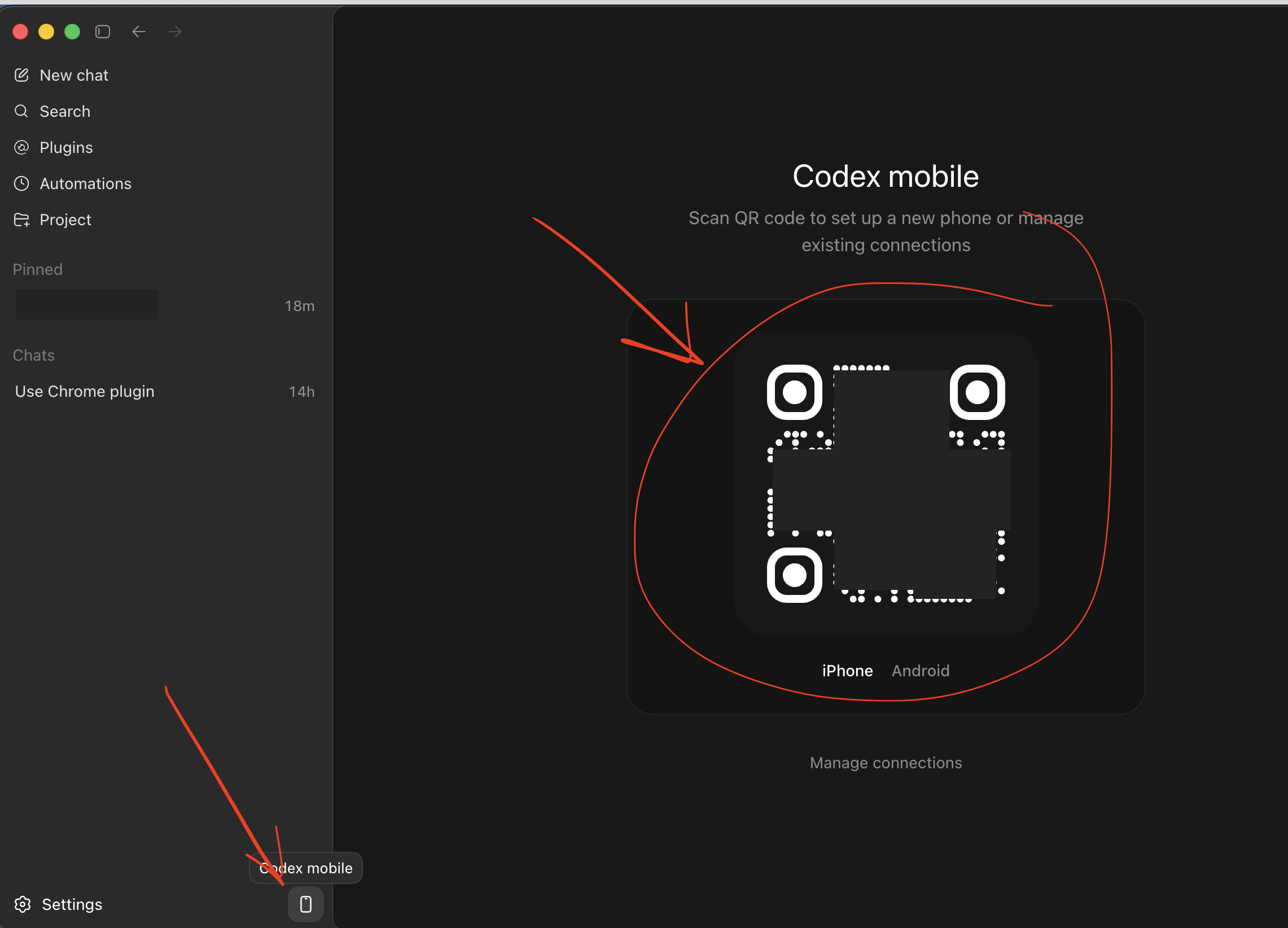
For mobile Remote, both devices must use the same ChatGPT account and workspace. Setup may also require MFA, SSO, or a passkey. The QR code pairs one controlling device with one host; each combination requires separate pairing.
For SSH workflows, OpenAI recommends standard secure-shell practices:
- Use trusted SSH keys rather than shared passwords.
- Give the remote account only the permissions it needs.
- Verify that
ssh host-aliasworks before involving Codex. - Keep the
codexexecutable on the remote login shell’sPATH. - Do not expose app-server transports on a shared or public network.
- Use a VPN or mesh network when a remote machine must be reached across networks.
The CLI’s --remote-auth-token-env option reads a bearer token from an environment variable. The documented transport rule is important: tokens are sent only over wss:// or local-only ws:// connections. This protects transport, but does not justify publishing an internet endpoint.
One firm Codex CLI security boundary: never run a remote host with broad credentials and approval bypasses for convenience. The --dangerously-bypass-approvals-and-sandbox flag bypasses both controls. It belongs only inside an externally hardened environment, as OpenAI’s command reference warns.
Four practical Codex CLI remote control workflows
The best Codex CLI remote-control workflows let a person inspect consequential actions without turning the phone into a tiny development workstation.
-
A consultant checks a proposal build while away from the desk. The host generates a PDF, runs a link check, and pauses before publishing. The consultant reviews the output and approves the final step from a phone. The source files and publishing credentials never move onto the phone.
-
An agency supervises a long test suite. An engineer starts tests on an always-on workstation, leaves for a meeting, and receives a notification when one test fails. They send a focused follow-up instead of streaming a remote desktop for an hour.
-
A founder works through an SSH development host. The desktop app connects to a saved SSH alias. Codex reads and edits the remote project under a least-privilege account. The founder reviews the diff from another device before any deployment command is approved.
-
A remote coding agent prepares client deliverables. The agent exports a demo, deck, or report to an approved folder. A human checks it, then uploads it manually to a private Revdoku bucket or uses optional API or CLI automation. The client-facing link remains stable even when the underlying files are replaced.
| Host choice | Good fit | Main limitation |
|---|---|---|
| Everyday laptop | Short tasks and occasional remote checks | Sleep or a closed app ends access |
| Dedicated computer | Longer jobs and repeatable automation | Requires patching and credential hygiene |
| SSH development host | Projects already running remotely | Adds SSH identity and server administration |
On a Mac laptop, OpenAI says to keep the lid open and power connected unless an external display is attached. Choosing Sleep stops access. On Windows, Computer Use works in the foreground, so the host session must remain available for UI-driven tasks.
From agent output to controlled client sharing
Codex Remote Control enables remote supervision, not secure client delivery. Sending a client a raw filesystem path, temporary preview URL, or terminal artifact creates problems: links may expire, updates may require new emails, and you may not know when clients open them.
A cleaner workflow separates production from distribution:
- Codex prepares the report, proposal, presentation, folder, or interactive demo on the connected host.
- A person reviews the result and removes logs, secrets, drafts, and internal notes.
- The owner drops the approved files into a Revdoku bucket from the dashboard. API or CLI publishing remains optional.
- The owner chooses a public link, password protection, or an email gate.
- Revdoku notifies the owner when a protected link is opened and records visitor activity such as pages viewed, clicks, and downloads.
- The owner updates the files at the same stable link when the deliverable changes.
| Client situation | Sharing choice | Follow-up signal |
|---|---|---|
| Proposal for one buyer | Email-gated link | Captured visitor and open notification |
| Sensitive financial deck | Password-protected link | Per-visitor viewing and download activity |
| Public product demo | Public link | Aggregate engagement and clicks |
| Deliverable needing comments | Protected link with feedback form | Feedback arrives without a custom backend |
For small teams, Codex can automate repetitive packaging while clients receive a controlled presentation layer. Revdoku’s feedback and contact forms collect responses without requiring another agent-built backend.
Troubleshooting Codex CLI remote control and safer operating habits
When Codex CLI remote control fails, troubleshoot from the outside inward. Reinstalling tools can erase evidence and rarely fixes workspace policy.
- Confirm that the host is awake, online, open when required, and running the current ChatGPT desktop app.
- Confirm that the controlling device has the latest ChatGPT app and is signed into the same account and workspace.
- Check Settings > Connections on the host. Verify Remote Control or Allow other devices to connect is enabled.
- If the connection predates the June 2026 pairing change and has been unused, pair it again.
- Complete every required SSO, MFA, or passkey step.
- If Codex Mobile is disabled by your workspace admin, stop local troubleshooting and contact the admin.
- Review sandbox, filesystem, network, and command-approval settings separately after connectivity works.
| Operating habit | Why it helps |
|---|---|
| Stop remote control when it is not needed | Reduces the time the host is reachable |
| Pair only devices you control | Limits authorized steering surfaces |
| Review connections after losing or replacing a phone | Removes stale access paths |
| Keep client secrets outside broad working directories | Reduces accidental model and tool access |
| Require approval for deployment and publishing | Preserves a human decision point |
| Keep audit-friendly logs of consequential actions | Makes incidents and mistakes easier to investigate |
Signing out disables Remote Control without removing pairings. After signing in, re-enable it if needed. If enabling it and selecting Add fails, OpenAI recommends restarting the desktop app and retrying.
Codex CLI remote control works best as a supervised bridge to a trusted host. The experimental CLI command can run the daemon and create short-lived pairing codes. ChatGPT Remote adds mobile and cross-device control, but phone setup begins in the desktop app and may face administrator restrictions.
Keep the boundaries clear. Device discovery is not command approval. Pairing is not unrestricted filesystem access. A secure relay is not permission to expose an app server publicly. The host’s sandbox, network rules, credentials, and approval policy remain central to security.
For client work, use controlled delivery. Let Codex prepare or update the asset, then use Revdoku to share the approved version through a stable public, password-protected, or email-gated link. This gives clients a clean experience and owners signals for timely follow-up.
Just ask to “publish to Revdoku” to publish your as a fast and secure website
from your Codex, Claude or another AI apppublish files or folders
Paste this into your AI app.
Install the Revdoku skill in your AI app.
npx skills add revdoku/revdoku --skill revdoku -gChoose your AI app to connect through MCP.
codex mcp add revdoku --url https://app.revdoku.com/mcp
codex mcp login revdoku
claude mcp add --transport http revdoku https://app.revdoku.com/mcp
claude mcp login revdoku
https://app.revdoku.com/mcpFree · Public or protected · Visitor analytics · Forms and email alerts Building websites for clients? Explore Revdoku for agencies
Frequently Asked Questions
Can I set up ChatGPT Remote from the Codex CLI?
No. The CLI can run the experimental remote-control daemon and generate short-lived pairing codes, but mobile Remote setup begins in the ChatGPT desktop app. Make sure the host and controlling device use the same ChatGPT account and workspace.
What should I do if Codex Mobile is disabled by my workspace administrator?
Contact your workspace owner or administrator to review the Remote Control policy. Reinstalling the app, changing networks, or generating a new pairing code will not override an administrator-enforced restriction.
Does pairing a device give it unrestricted access to my computer?
No. Pairing authorizes remote steering, while the host’s sandbox, filesystem permissions, network rules, and command approvals continue to apply. Review these controls separately and require approval for sensitive actions such as deployment or publishing.
Is it safe to expose the Codex app server directly to the internet?
No. Use the supported secure relay or a properly secured VPN or mesh network rather than publishing an app-server endpoint. Authentication tokens and encrypted transport help protect connections, but they do not make a broadly exposed service risk-free.
Why does my paired host not appear on my phone?
Confirm that the host is awake, online, and running the current desktop app, then verify both devices use the same account and workspace. Check that Remote Control is enabled, complete any MFA or SSO requirements, and renew older or stale pairings if necessary.
Should I allow a device-discovery prompt that mentions Codex?
Only after confirming which application issued the prompt and which device you intend to connect. Device discovery, remote-host access, and approval to run a command are separate permissions, so granting one does not automatically grant the others.
How should I share files that Codex prepares for a client?
Review the output first and remove secrets, logs, drafts, and internal notes. Then publish the approved files through a controlled service such as Revdoku, using a public, password-protected, or email-gated stable link with appropriate activity tracking.
Related Articles
Use Codex CLI remote control from your phone
Compare Codex mobile remote control, SSH from a phone, and Codex CLI remote app-server workflows, then publish generated output with Revdoku.
Control Codex from iPhone or Android with ChatGPT Remote
Control Codex from your phone with ChatGPT Remote. Pair the desktop app, keep the host awake, or run projects on a connected SSH host.