How to Migrate a Grok Build Website to Revdoku
Table of Contents
- Can you migrate a Grok Build website away from grok.me?
- 1. Ask for a dependency check before you export Grok website files
- 2. Connect a tool for a Grok Build-to-Revdoku migration
- 3. Tell Grok to migrate Grok Build website files
- 4. Use the ZIP fallback to export Grok website files
- 5. Test static or SPA routing
- 6. Choose the audience and publish
- 7. Retire the old grok.me website hosting link last
- Migration limit to remember
- Can you migrate a Grok Build website away from grok.me?
- 1. Ask for a dependency check before you export Grok website files
- 2. Connect a tool for a Grok Build-to-Revdoku migration
- 3. Tell Grok to migrate Grok Build website files
- 4. Use the ZIP fallback to export Grok website files
- 5. Test static or SPA routing
- 6. Choose the audience and publish
- 7. Retire the old grok.me website hosting link last
- Migration limit to remember
TL;DR: To migrate Grok Build files safely, treat the site as a static project. Ask Grok to collect every file and copy the directory to Revdoku when it has tool access. Otherwise, request and manually upload a ZIP. Keep the old grok.me version until the replacement passes testing.
Open Grok and the Build project that contains the website you want to move.
Can you migrate a Grok Build website away from grok.me?
You can independently host websites built with HTML, CSS, browser-side JavaScript, images, fonts, and downloads. A successful Grok export includes the complete file tree, not just public-page text.
Some Grok Build projects may rely on hosted functions, data, authentication, an AI runtime, or other services. These nonstatic components need separate replacements.
1. Ask for a dependency check before you export Grok website files
Before copying, ask:
Audit this Grok Build website for migration.

List every HTML, CSS, JavaScript, image, font, document, and data file.
Identify server functions, databases, storage, authentication, secrets,
external APIs, AI features, and platform-only services.
Tell me which parts can run as a static website and which need replacement.
Do not expose or copy private credentials.
This catches backend dependencies hidden by a polished preview.
2. Connect a tool for a Grok Build-to-Revdoku migration
If Grok can connect to Revdoku or another authorized file-writing tool, authorize the connection through the supported flow.
You can give a compatible AI assistant Revdoku’s connection instructions and connect to https://app.revdoku.com/mcp where the interface supports remote MCP. Grok accounts and Build interfaces may expose different integrations. If yours cannot connect, use the ZIP method below.
Never paste a password or API key into the conversation.
3. Tell Grok to migrate Grok Build website files
Use this transfer prompt:
Copy this complete Grok Build website to a new Revdoku bucket.

Requirements:
1. Put index.html at the website root.
2. Include every HTML, CSS, JavaScript, image, font, document,
   metadata, and data file used by the website.
3. Preserve all directories and relative paths.
4. If the project requires a build, produce the finished static
   production output before transfer.
5. Exclude secrets, API keys, environment files, private prompts,
   customer data, and local computer paths.
6. List the full source inventory before copying.
7. Copy every file, then compare the Revdoku inventory and file count
   with the source.
8. Report functions, databases, storage, authentication, AI runtime,
   or dynamic APIs that cannot move as static files.
9. Publish a Revdoku preview first. Do not publish publicly yet.
10. Test navigation, assets, interactions, downloads, mobile layout,
    direct route reloads, and broken links.
11. Ask me before the final publication or any change to the grok.me site.
The agent should report missing or changed files, not silently declare success.
4. Use the ZIP fallback to export Grok website files
If Grok cannot write directly to Revdoku:
- Ask Grok to package all deployable static files as a ZIP.
- Download and extract it.
- Confirm
index.htmlexists at the intended root. - Check that folders were not flattened.
- Remove secrets and private material.
- Upload the complete folder or ZIP to a Revdoku bucket.
- Publish a preview and test it.
Saving only the browser-rendered public page can omit project files, routes, assets, and generated build output.
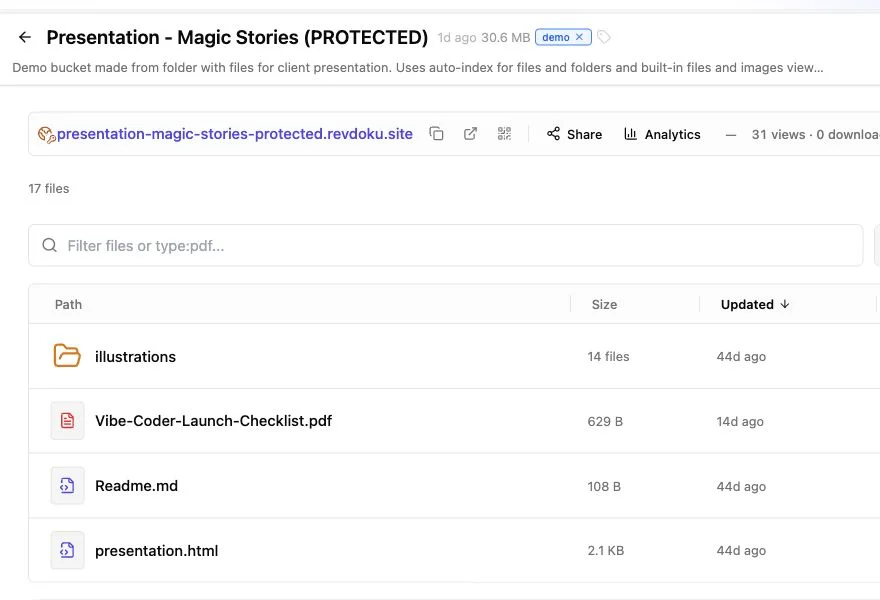
The Revdoku bucket should contain the complete static production output with its original folders intact.
5. Test static or SPA routing
Use static mode when paths have their own HTML files. Use SPA routing when client-side JavaScript expects every route to fall back to one index.html.
Open the preview while signed out and check:
- Homepage and navigation.
- Direct reloads on nested paths.
- Images, fonts, icons, and styles.
- Forms, buttons, and downloads.
- Desktop and mobile layouts.
- Browser console errors.
- Any feature the dependency audit flagged.
6. Choose the audience and publish
Publish publicly only for a general audience. Use password or verified-email access for client work and private reviews. Revdoku can record page, click, and download activity, notify you of visitors, and let you replace files at the same URL.
See How to password protect a Grok Build site and Grok Build vs Revdoku for related details.
7. Retire the old grok.me website hosting link last
After the Revdoku version passes every check:
- Change the original site’s sharing setting or remove the deployment using the controls available in your Grok account.
- Test the old URL in a private browser window.
- Update shared links, bookmarks, and domains.
- Send the new Revdoku URL to the intended audience.
Public grok.me pages can be discoverable. Our Google test of Grok Build websites demonstrates why confidential work needs access control rather than an obscure URL.
Migration limit to remember
Static files can move between grok.me hosting and Revdoku; hosted backends cannot. Server functions, databases, persistent storage, authentication, secrets, scheduled jobs, and platform-only AI features require separate work.
A reliable Grok Build-to-Revdoku migration follows this order: inventory, copy, preview, test, publish, then retire the original.
Just ask to “publish to Revdoku” to publish your as a fast and secure website
from your Codex, Claude or another AI apppublish files or folders
Paste this into your AI app.
Install the Revdoku skill in your AI app.
npx skills add revdoku/revdoku --skill revdoku -gChoose your AI app to connect through MCP.
codex mcp add revdoku --url https://app.revdoku.com/mcp
codex mcp login revdoku
claude mcp add --transport http revdoku https://app.revdoku.com/mcp
claude mcp login revdoku
https://app.revdoku.com/mcpFree · Public or protected · Visitor analytics · Forms and email alerts Building websites for clients? Explore Revdoku for agencies
Frequently Asked Questions
Can every Grok Build website be migrated to Revdoku?
Websites made entirely from static files can usually be migrated. Server functions, databases, authentication, persistent storage, scheduled jobs, and platform-specific AI features require separate replacements.
What files should be included in the migration?
Copy the complete deployable file tree, including HTML, CSS, JavaScript, images, fonts, documents, metadata, and data files. Preserve directories and relative paths, and place index.html at the intended website root.
What should I do if Grok cannot connect directly to Revdoku?
Ask Grok to package the finished static website as a ZIP, then download and inspect it before uploading. Confirm that the archive contains the complete production output and that its directory structure has not been flattened.
How can I avoid exposing secrets during the transfer?
Do not include API keys, passwords, environment files, private prompts, customer data, or local computer paths. Never paste credentials into a conversation; use only the supported authorization flow when connecting tools.
Should I configure the migrated website for static or SPA routing?
Use static routing when individual paths have their own HTML files. Use SPA routing when browser-side JavaScript expects nested routes to fall back to a single index.html, and verify this by reloading nested URLs directly.
What should I test before publishing the migrated website?
Test navigation, nested routes, images, fonts, styles, interactions, forms, downloads, and mobile layouts while signed out. Also review browser console errors and verify every feature identified during the dependency audit.
When is it safe to retire the original grok.me website?
Keep the original site available until the Revdoku preview has passed testing and the new audience settings are correct. After publishing, update shared links and domains, confirm the old URL’s status in a private browser window, and then retire the old deployment.
Related Articles
How to Migrate a Claude Artifact to Revdoku
Learn how to export, transfer, test, and securely publish a Claude Artifact as a static website on Revdoku.
How to Export ChatGPT Sites and Move Your Files
Learn how to export a ChatGPT Site, verify every file, move it to Revdoku or another static host, test the preview, and retire the original.
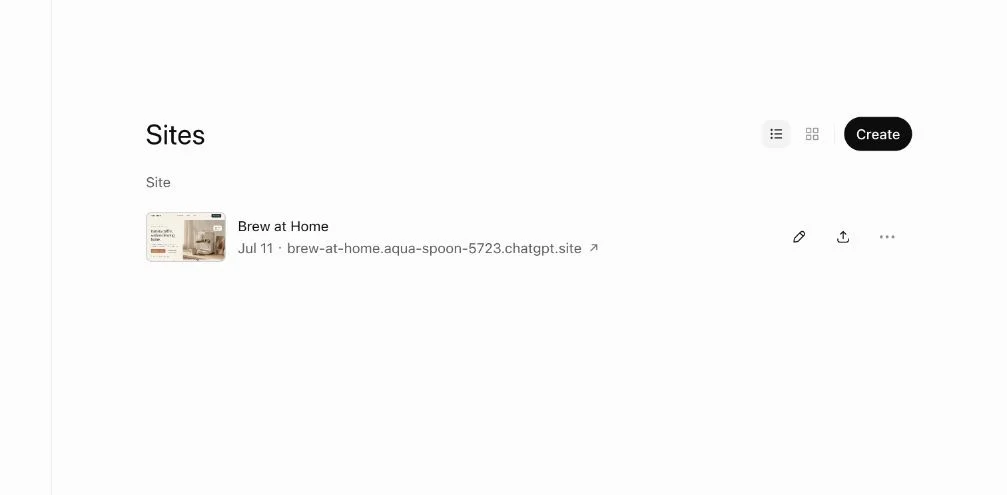
How to Migrate a ChatGPT Site to Revdoku
Move a ChatGPT Site to Revdoku without missing files. Test a private preview, choose access controls, and safely retire the old Site.