Share Protected Files and Review Viewer Analytics in Revdoku
Share a folder through one protected URL, let visitors open its files in the browser, and use analytics to see recorded activity.
1. Upload the files you want to share
Create or open a bucket and upload the documents and folders. If you want Revdoku’s file listing, do not add an index.html homepage that replaces it. Check that the listing contains only the files intended for your viewers.
2. Choose the access gate
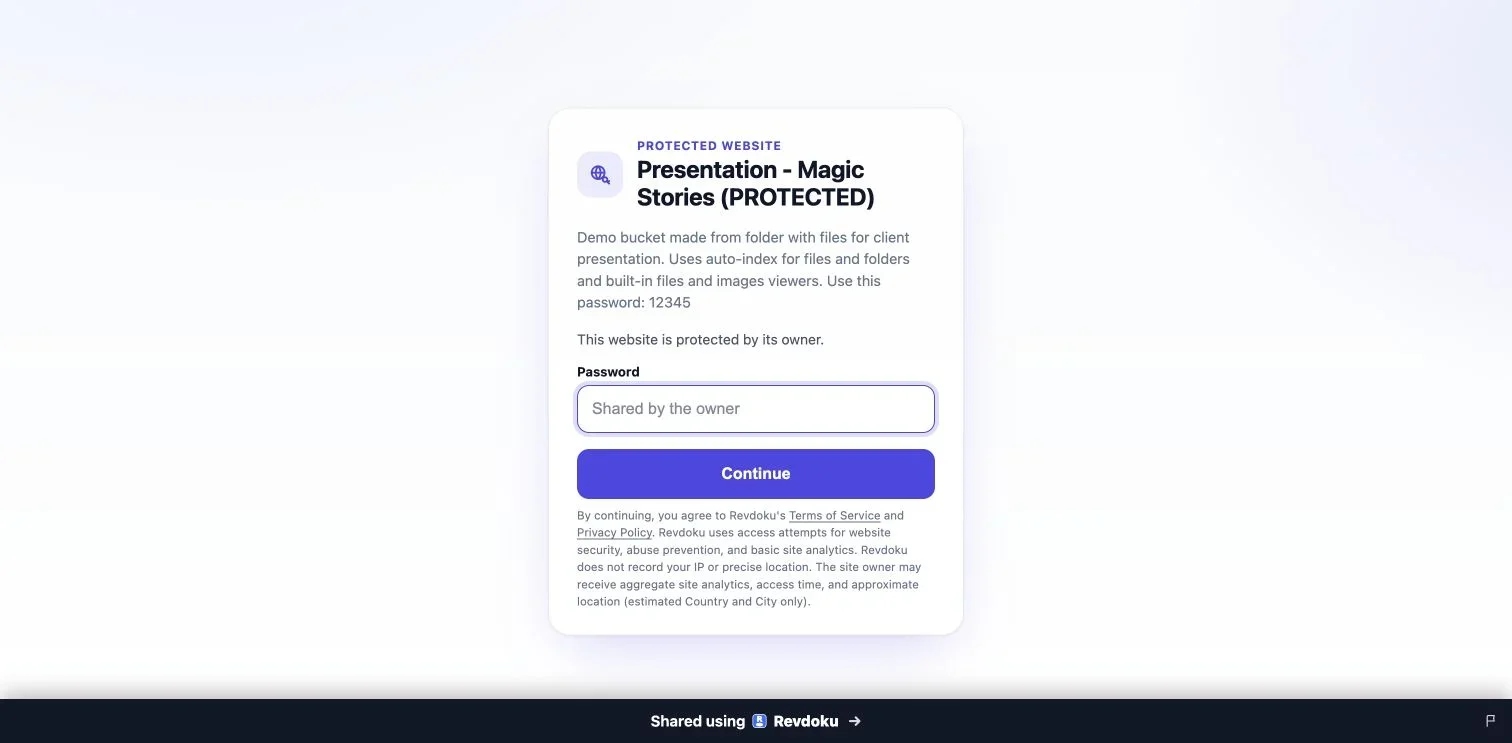
Choose Password for a shared-password gate, or Require Email for a one-time code sent to each visitor’s email address. Require Email does not use a shared site password. Use its allowlist if access should be limited to specific addresses or domains.
The Free plan includes one permanent Password website. A permanent Require Email website needs a paid plan.
Publish the bucket and wait for the live URL before sharing.
3. Open it as a visitor
Use a private browser window to test the gate and a direct file link. After passing the gate, open the documents you expect visitors to read and check the download controls.
This demo displays its sample password. Do not put a private site’s password in its public description.
Browse the current live Revdoku examples.
4. Review analytics
Open the website’s Analytics panel. Check Overview for aggregate activity and Activity for recorded events in the selected period.
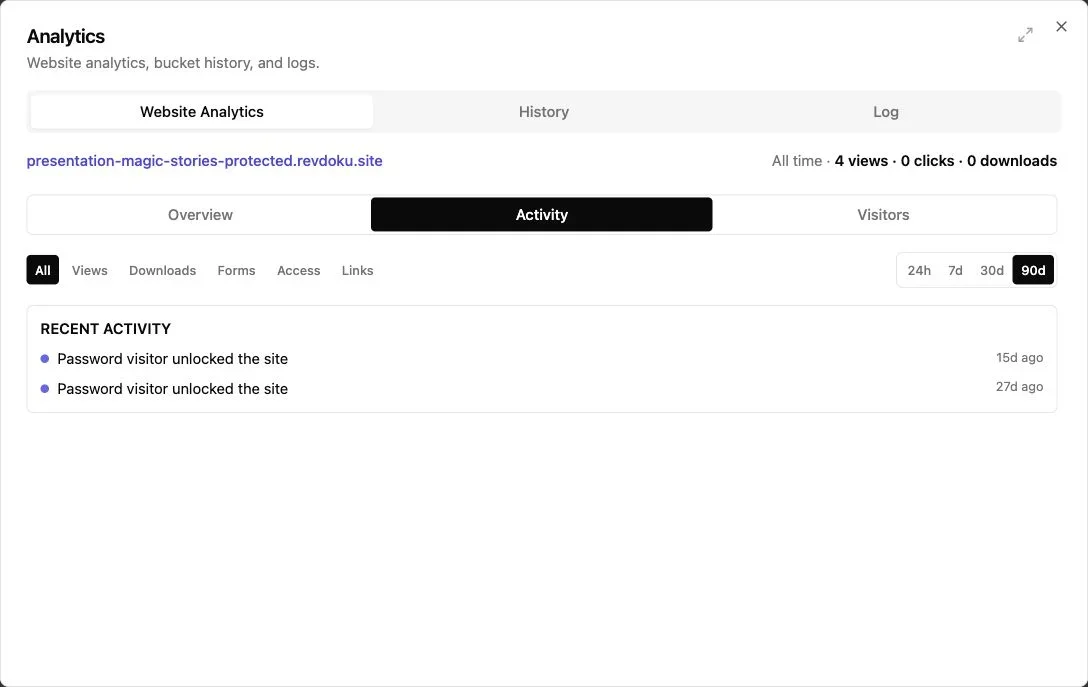
These are anonymous password unlock events, not identified reader visits.
Require Email can associate authorized activity with a verified address. Analytics detail and retention depend on the plan. Page views and downloads are different events; neither guarantees that the document was read.
5. Update the shared material
Upload the revised files to the same bucket and republish. Keep filenames stable when people already have direct document links. Saving draft files alone does not change the published site.
You can also ask a connected AI to summarize recent visits or update the files, then check the result at the same shared URL.
Just ask to “publish to Revdoku” to publish your as a fast and secure website
from your Codex, Claude or another AI apppublish files or folders
Paste this into your AI app.
Install the Revdoku skill in your AI app.
npx skills add revdoku/revdoku --skill revdoku -gChoose your AI app to connect through MCP.
codex mcp add revdoku --url https://app.revdoku.com/mcp
codex mcp login revdoku
claude mcp add --transport http revdoku https://app.revdoku.com/mcp
claude mcp login revdoku
https://app.revdoku.com/mcpFree · Public or protected · Visitor analytics · Forms and email alerts Building websites for clients? Explore Revdoku for agencies