Use Case: Detect Changes Between Document Revisions
Table of Contents
- Step 1: Revdoku Envelopes inbox.
- Step 2: Open the Invoice Review checklist.
- Step 3: Run the AI review on invoice-v1.pdf.
- Step 4: AI analyzes the pages.
- Step 5: Review Complete: 3 issues found, 3 passed, 50% compliance.
- Step 6: Upload New Revision dialog.
- Step 7: v2 created.
- Step 8: Analyzing pages and reviewing checks on the new revision
- Step 9: Finalizing the v2 report
- Step 10: Results filter.
- Step 11: Final Report view.
- Conclusion
- What You Learned
- Step 1: Revdoku Envelopes inbox.
- Step 2: Open the Invoice Review checklist.
- Step 3: Run the AI review on invoice-v1.pdf.
- Step 4: AI analyzes the pages.
- Step 5: Review Complete: 3 issues found, 3 passed, 50% compliance.
- Step 6: Upload New Revision dialog.
- Step 7: v2 created.
- Step 8: Analyzing pages and reviewing checks on the new revision
- Step 9: Finalizing the v2 report
- Step 10: Results filter.
- Step 11: Final Report view.
- Conclusion
- What You Learned
Detect Changes Between Document Revisions
This use case demonstrates how to detect changes between document revisions. You will upload an original invoice, run Review with a checklist, then upload a revised version and let Revdoku surface every field-level change — terms, amounts, dates, and account numbers.
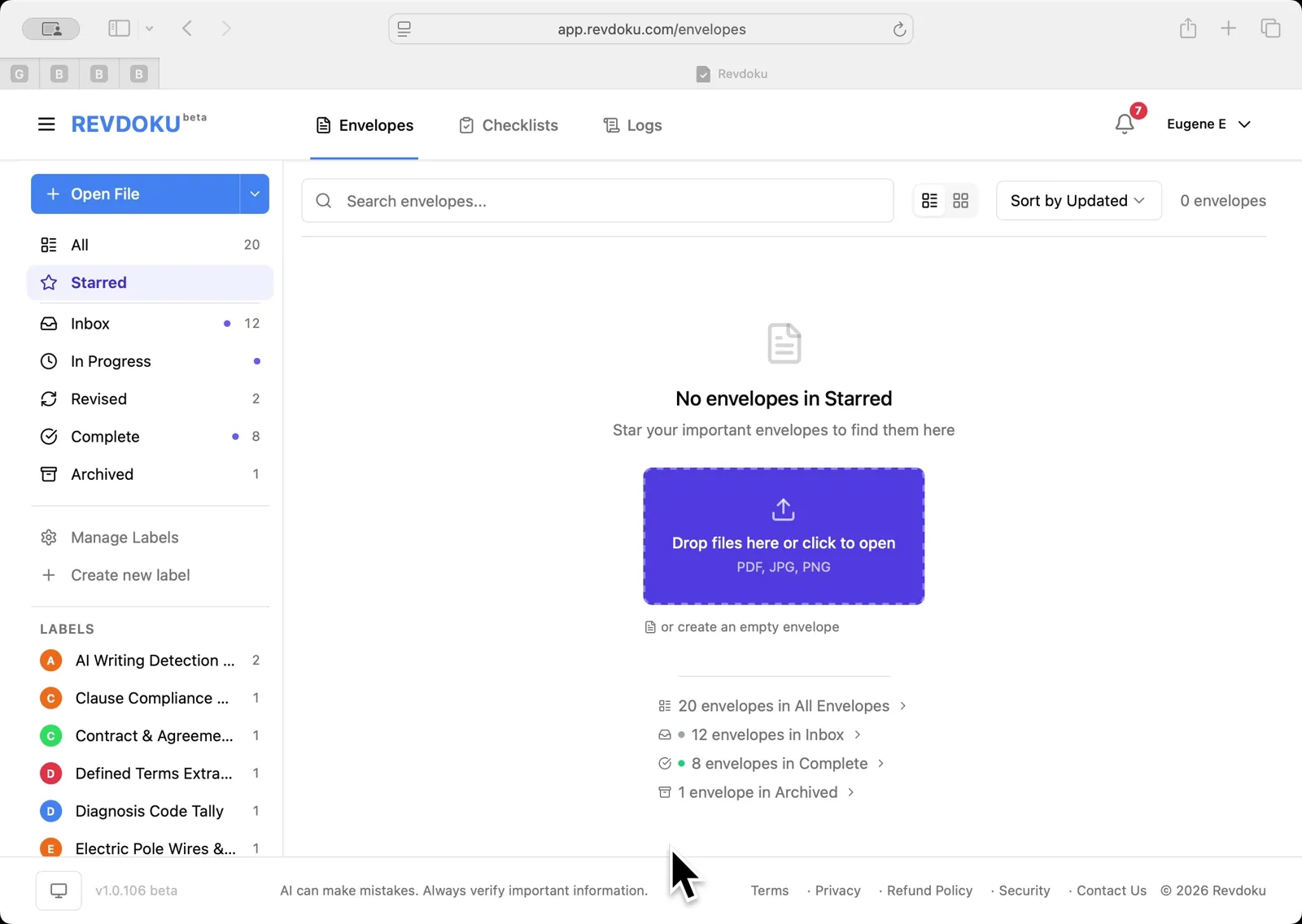
Step 1: Revdoku Envelopes inbox.
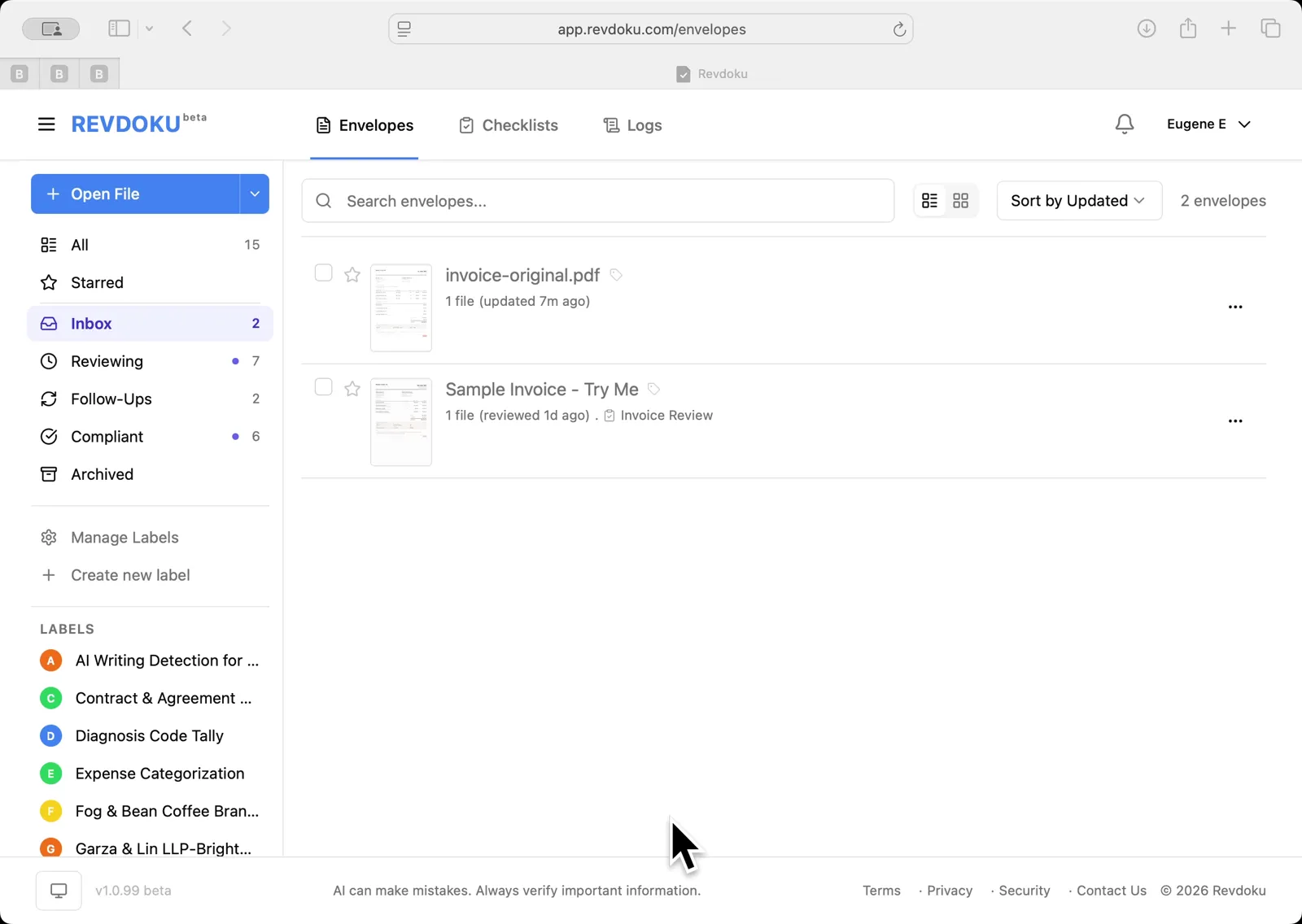
Revdoku Envelopes inbox — invoice-original.pdf and Sample Invoice are listed.
Step 2: Open the Invoice Review checklist.
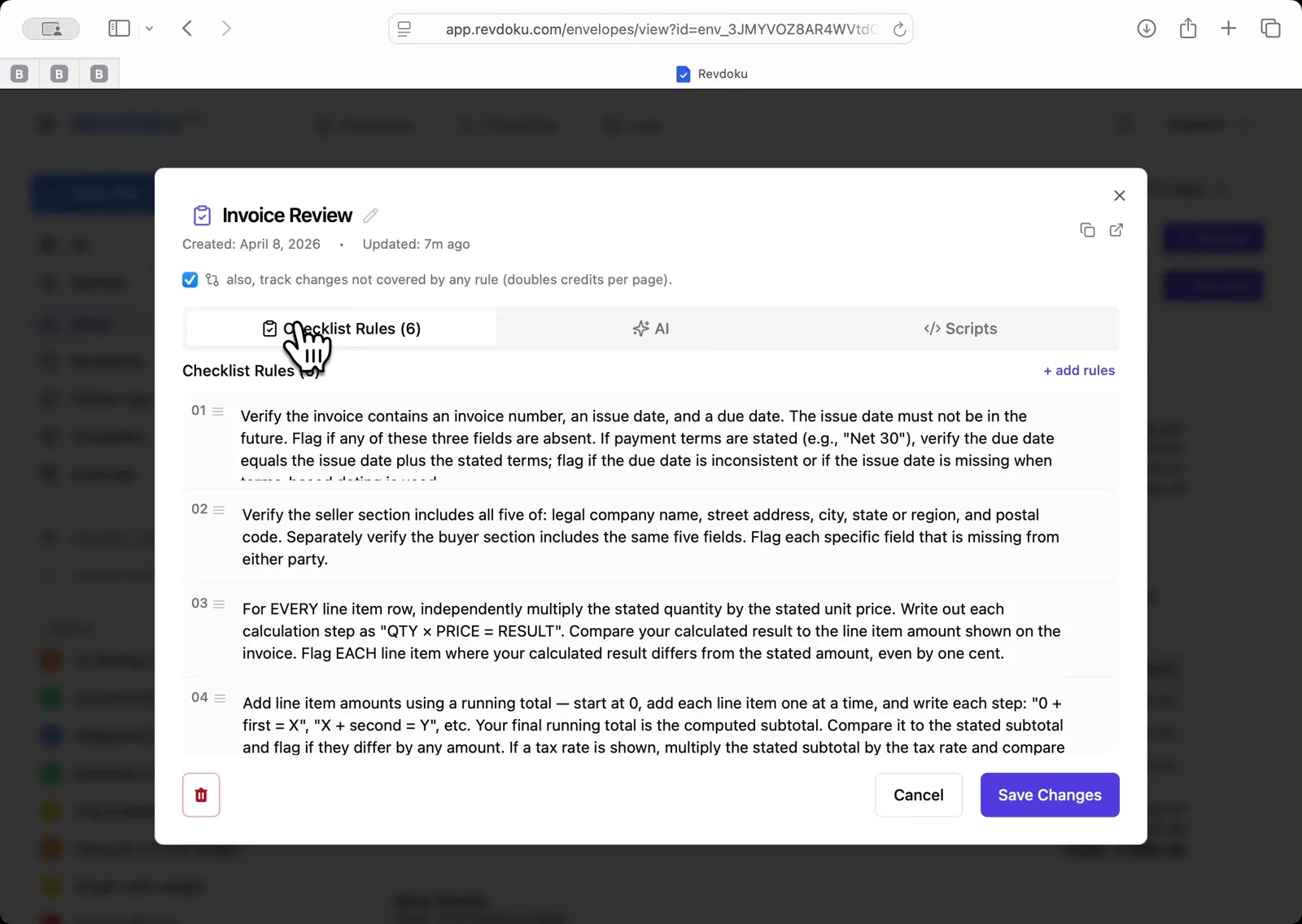
The checklist shows 6 rules and the track-changes option enabled
Open the Invoice Review checklist showing 6 rules and the track-changes option enabled.
Step 3: Run the AI review on invoice-v1.pdf.
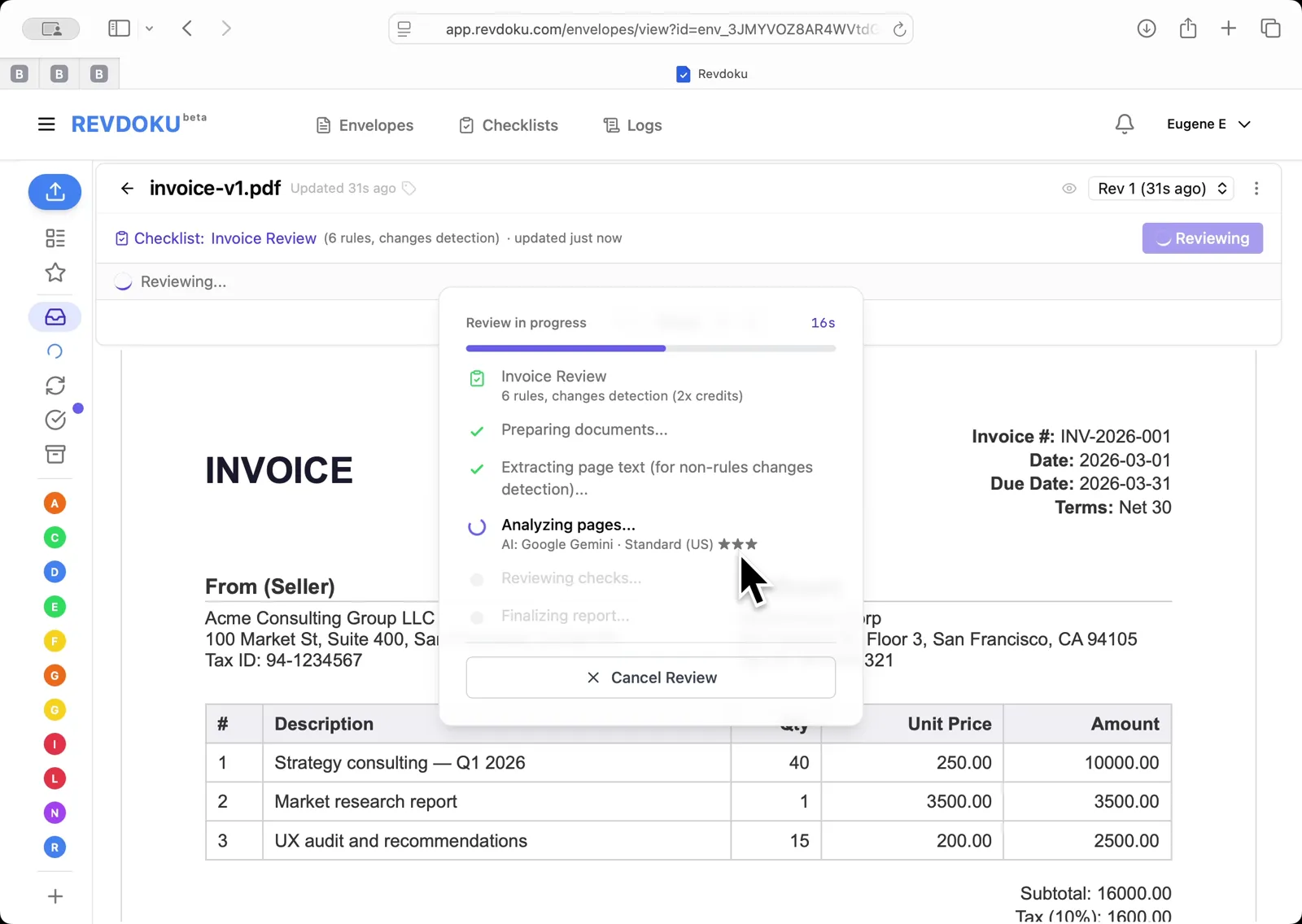
Run the AI review on invoice-v1.pdf — Revdoku prepares the document and extracts page text.
Step 4: AI analyzes the pages.
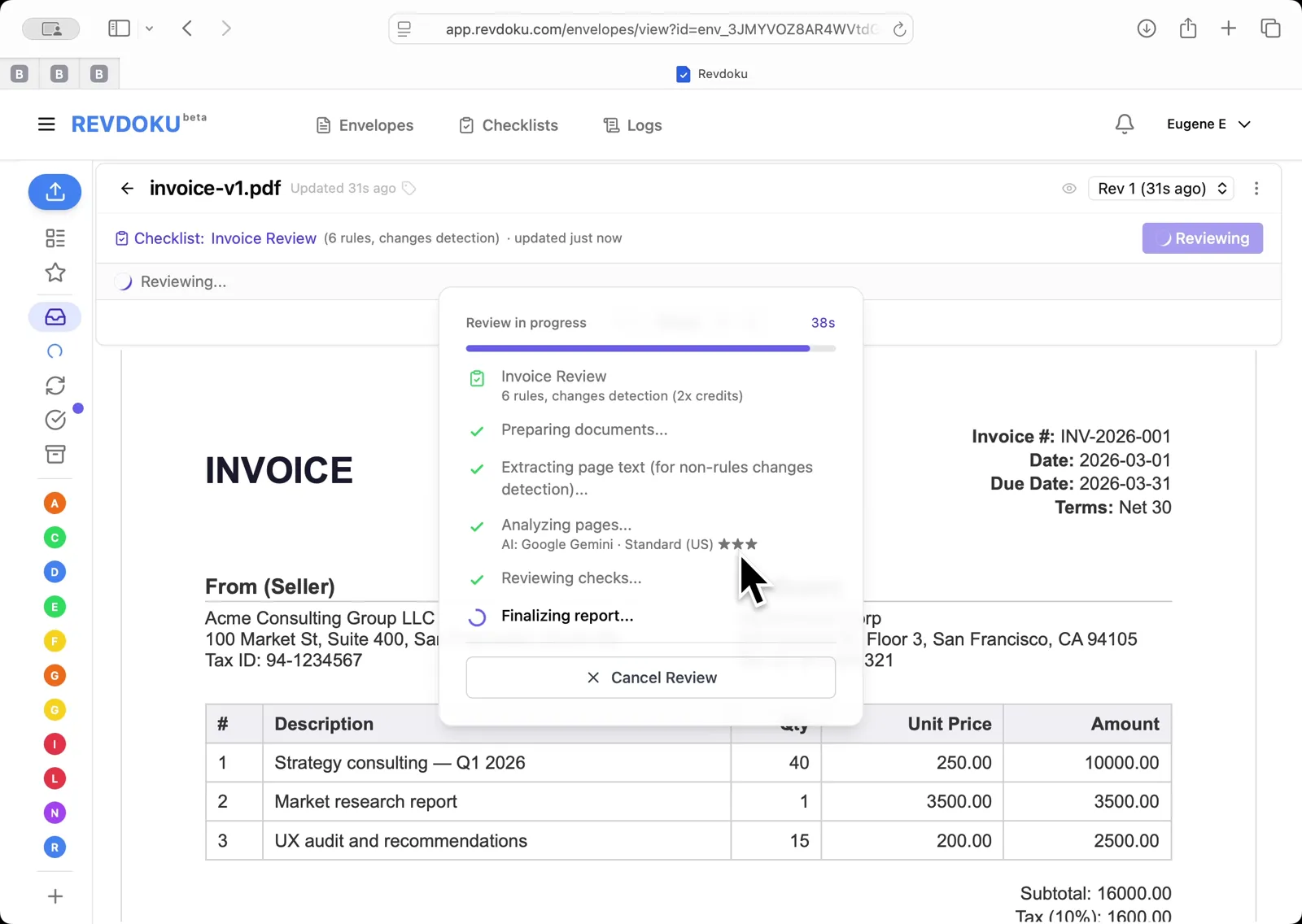
Google Gemini reviews checks and finalizes the report
AI analyzes pages with Google Gemini, then reviews checks and finalizes the report.
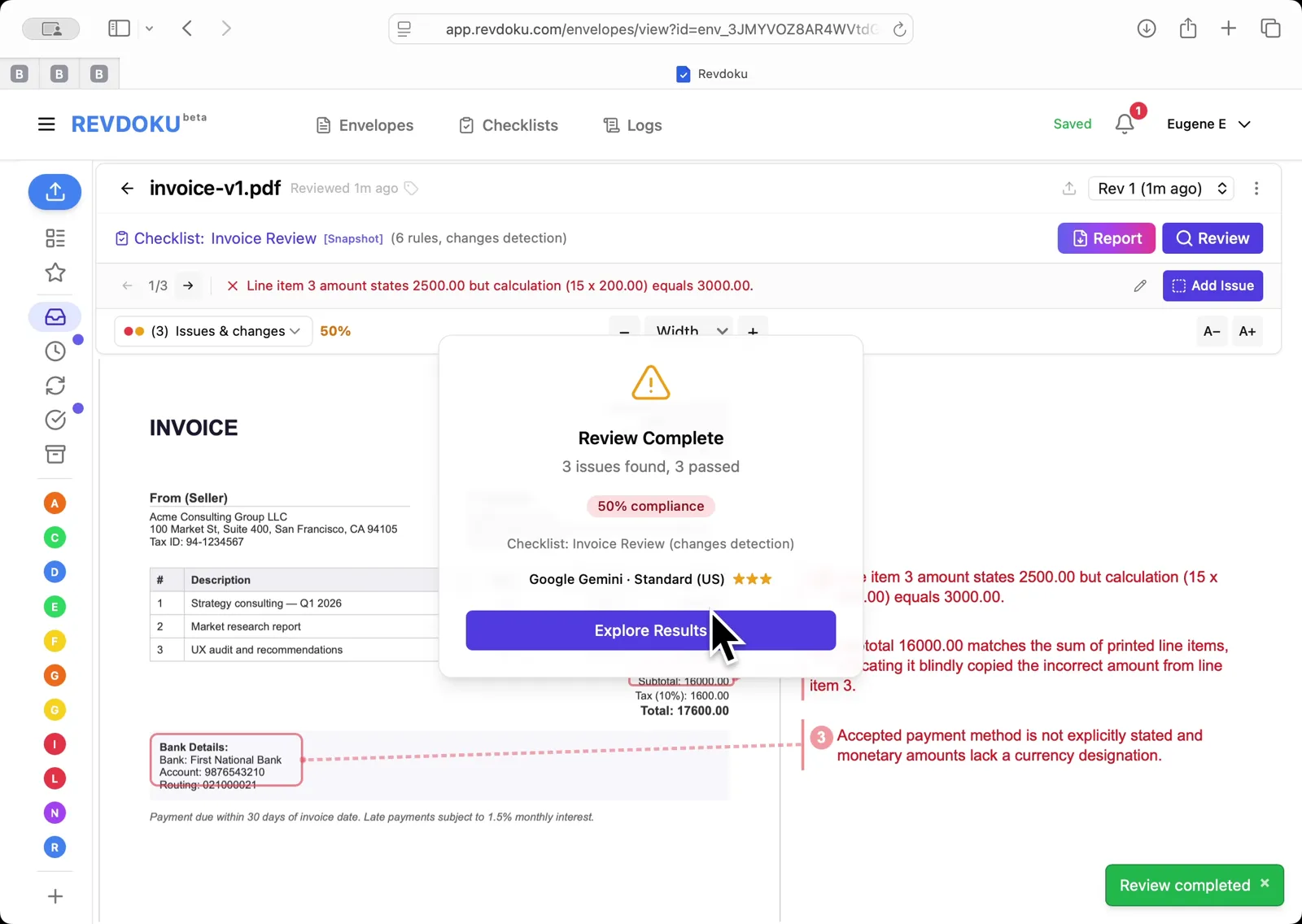
Step 5: Review Complete: 3 issues found, 3 passed, 50% compliance.
Review Complete: 3 issues found, 3 passed, 50% compliance — issues annotated directly on the invoice.
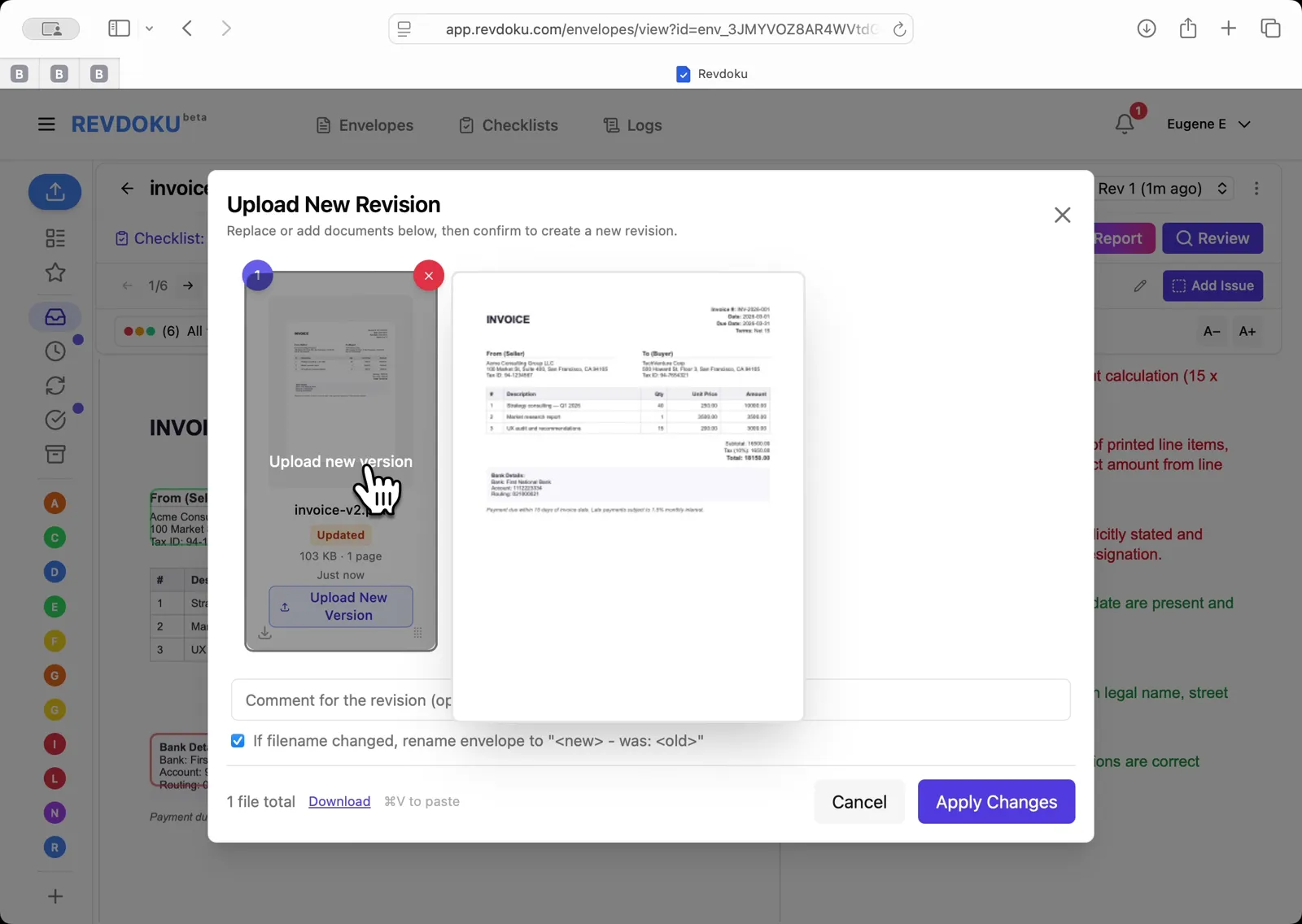
Step 6: Upload New Revision dialog.
Upload New Revision dialog — drag invoice-v2.pdf in to replace v1.
Step 7: v2 created.
v2 created — new review starts, re-checking 3 prior issues and verifying 3 prior passes.
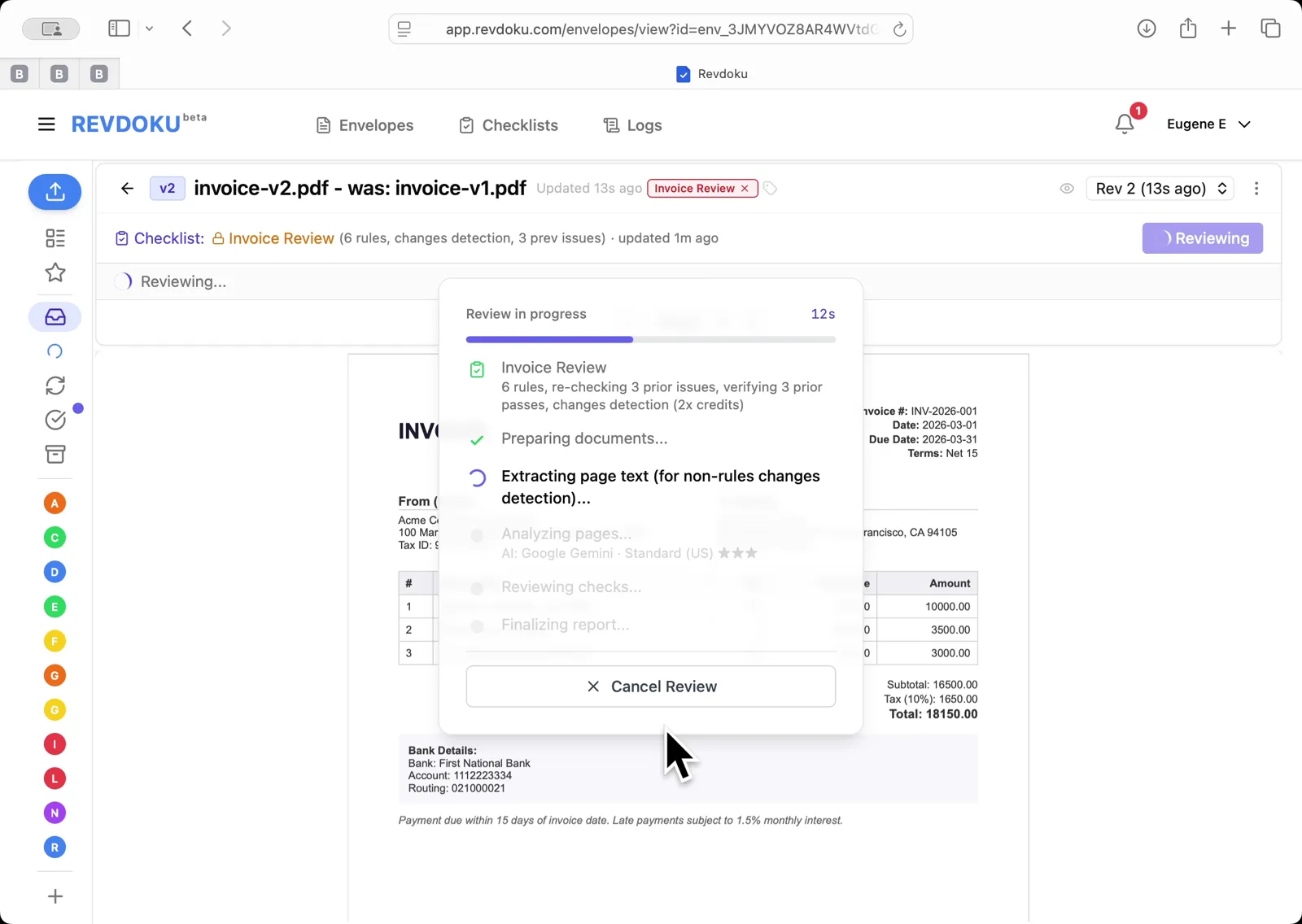
Step 8: Analyzing pages and reviewing checks on the new revision
Analyzing pages and reviewing checks on the new revision.
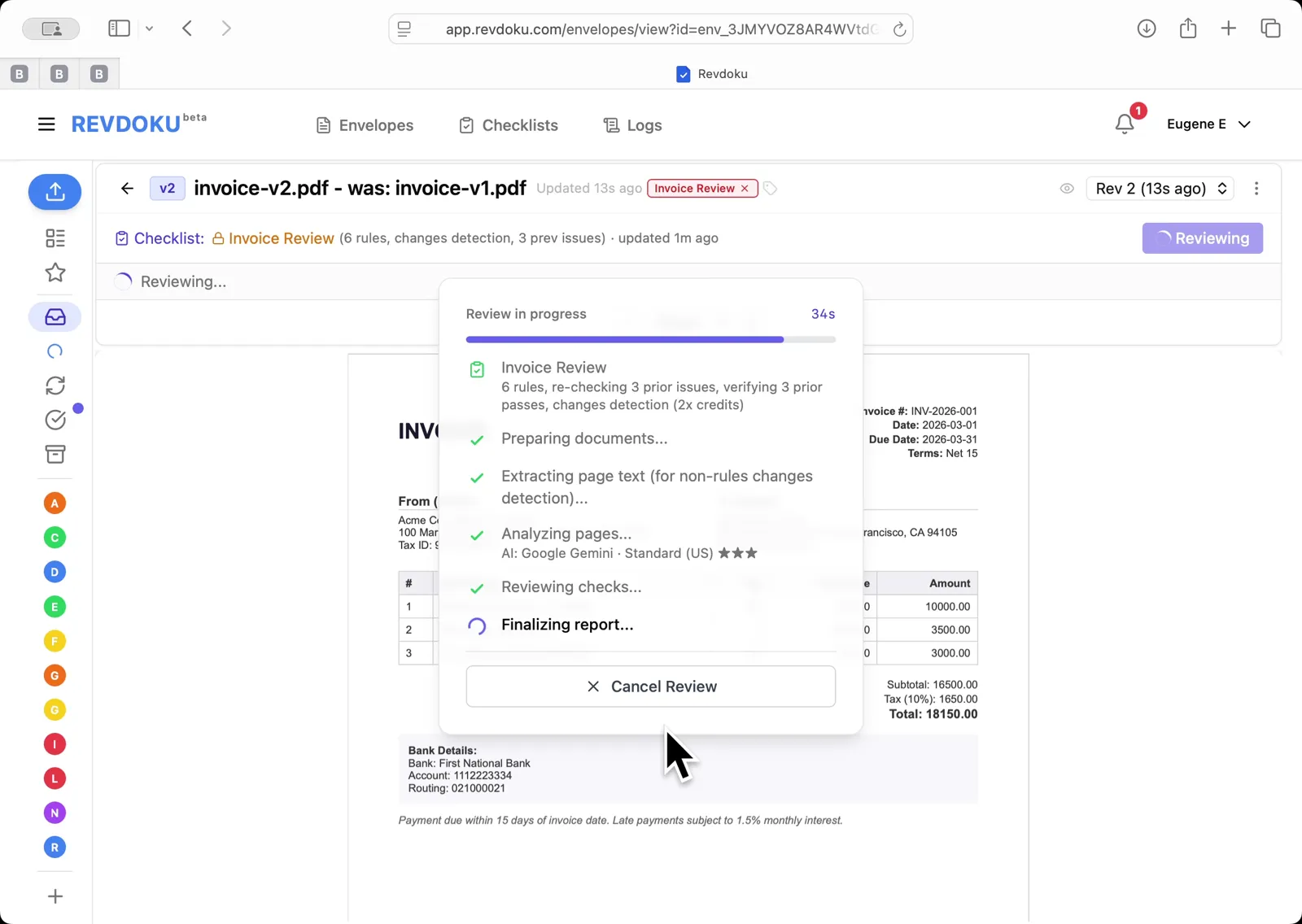
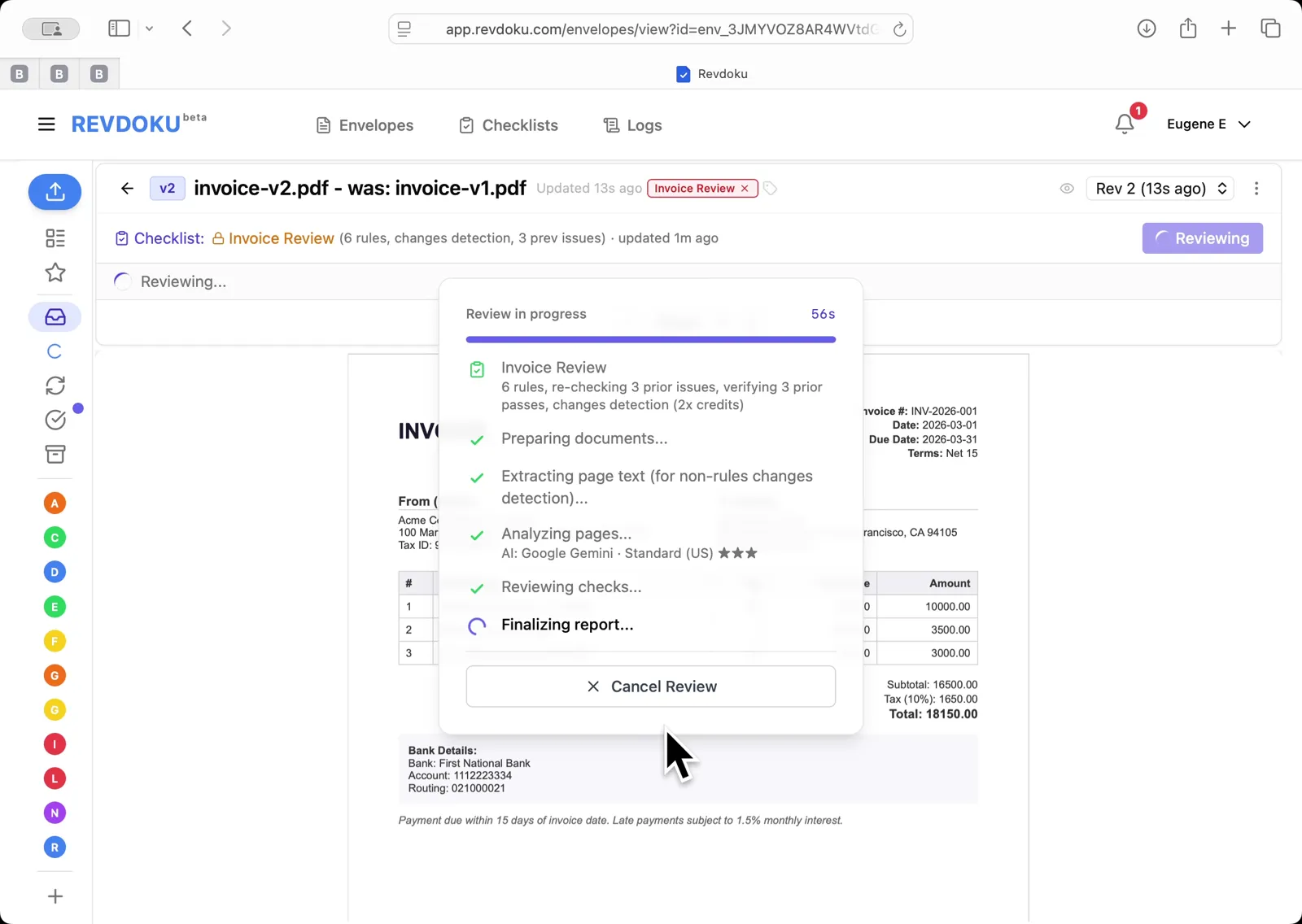
Step 9: Finalizing the v2 report
Finalizing the v2 report.
Step 10: Results filter.
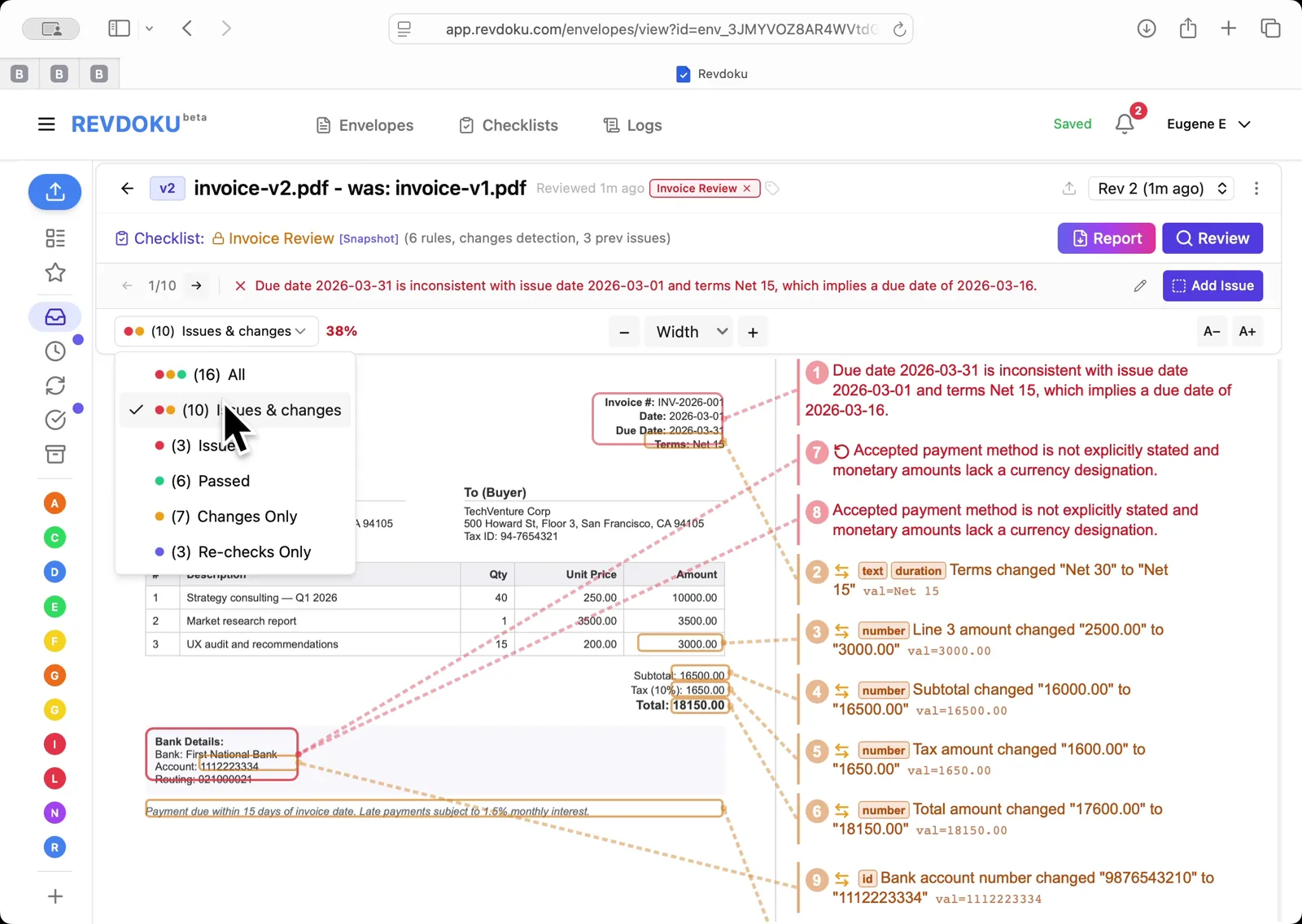
Results filter — All / Issues & changes / Issues / Passed / Changes Only / Re-checks Only — 10 issues & changes surfaced.
Step 11: Final Report view.
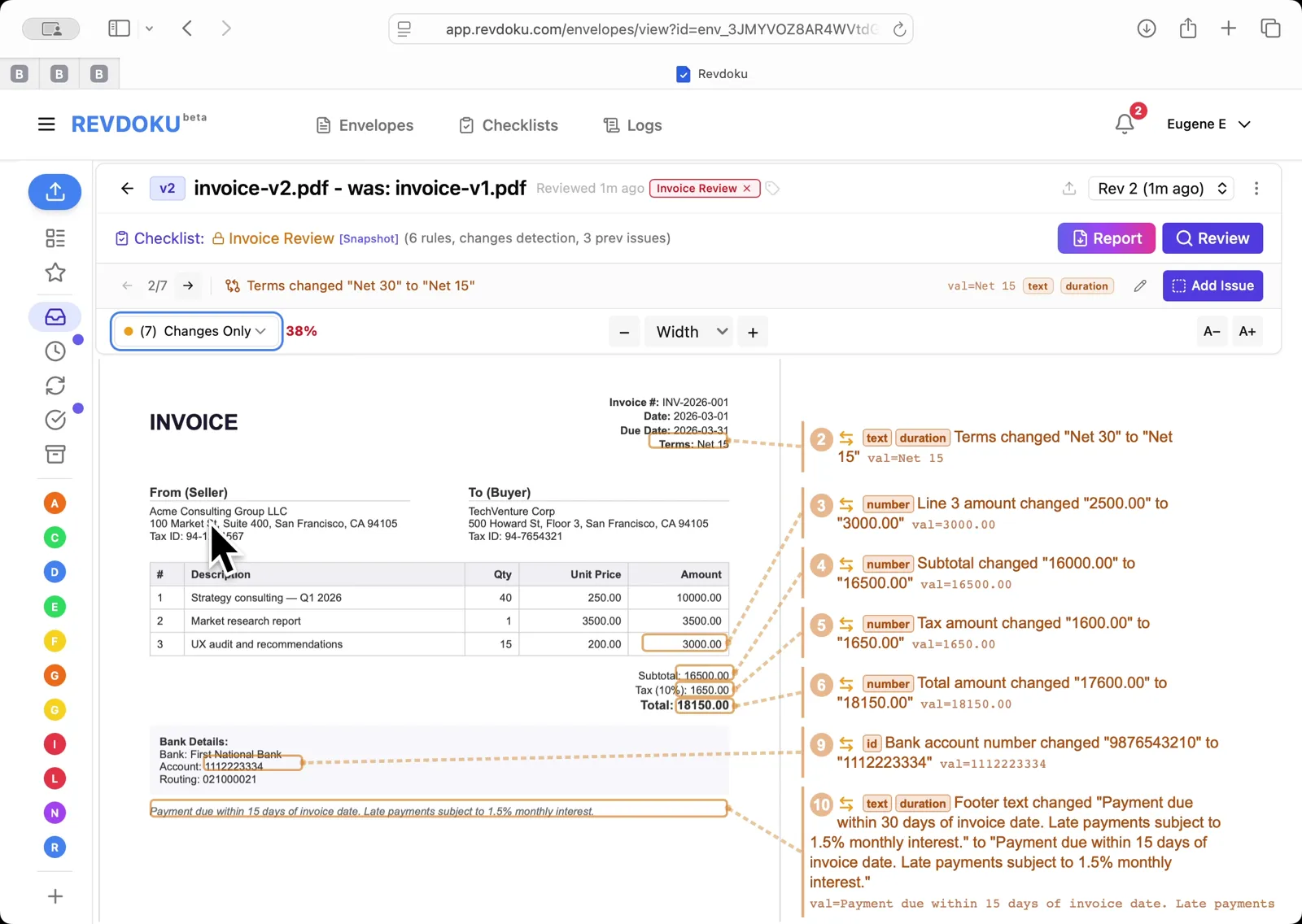
Final Report view — every field-level change annotated: Net 30 to Net 15, line item, subtotal, tax, total, and bank account number.
Conclusion
In this tutorial it was demonstrated how to use Revdoku for detecting changes between document revisions. The following steps were shown:
- Revdoku Envelopes inbox — invoice-original.pdf and Sample Invoice are listed
- Open the Invoice Review checklist showing 6 rules and the track-changes option enabled
- Run the AI review on invoice-v1.pdf — Revdoku prepares the document and extracts page text
- AI analyzes pages with Google Gemini, then reviews checks and finalizes the report
- Review Complete: 3 issues found, 3 passed, 50% compliance — issues annotated directly on the invoice
- Upload New Revision dialog — drag invoice-v2.pdf in to replace v1
- v2 created — new review starts, re-checking 3 prior issues and verifying 3 prior passes
- Analyzing pages and reviewing checks on the new revision
- Finalizing the v2 report
- Results filter — All / Issues & changes / Issues / Passed / Changes Only / Re-checks Only — 10 issues & changes surfaced
- Final Report view — every field-level change annotated: Net 30 to Net 15, line item, subtotal, tax, total, and bank account number
What You Learned
This case showed how Revdoku can take a document, apply a structured checklist, and surface specific findings — all in under a minute. No manual line-by-line reading required.
Disclosure: Sample documents in this use case were generated using AI and contain intentional errors for demonstration purposes. All names, companies, and details are fictional.
Related Articles
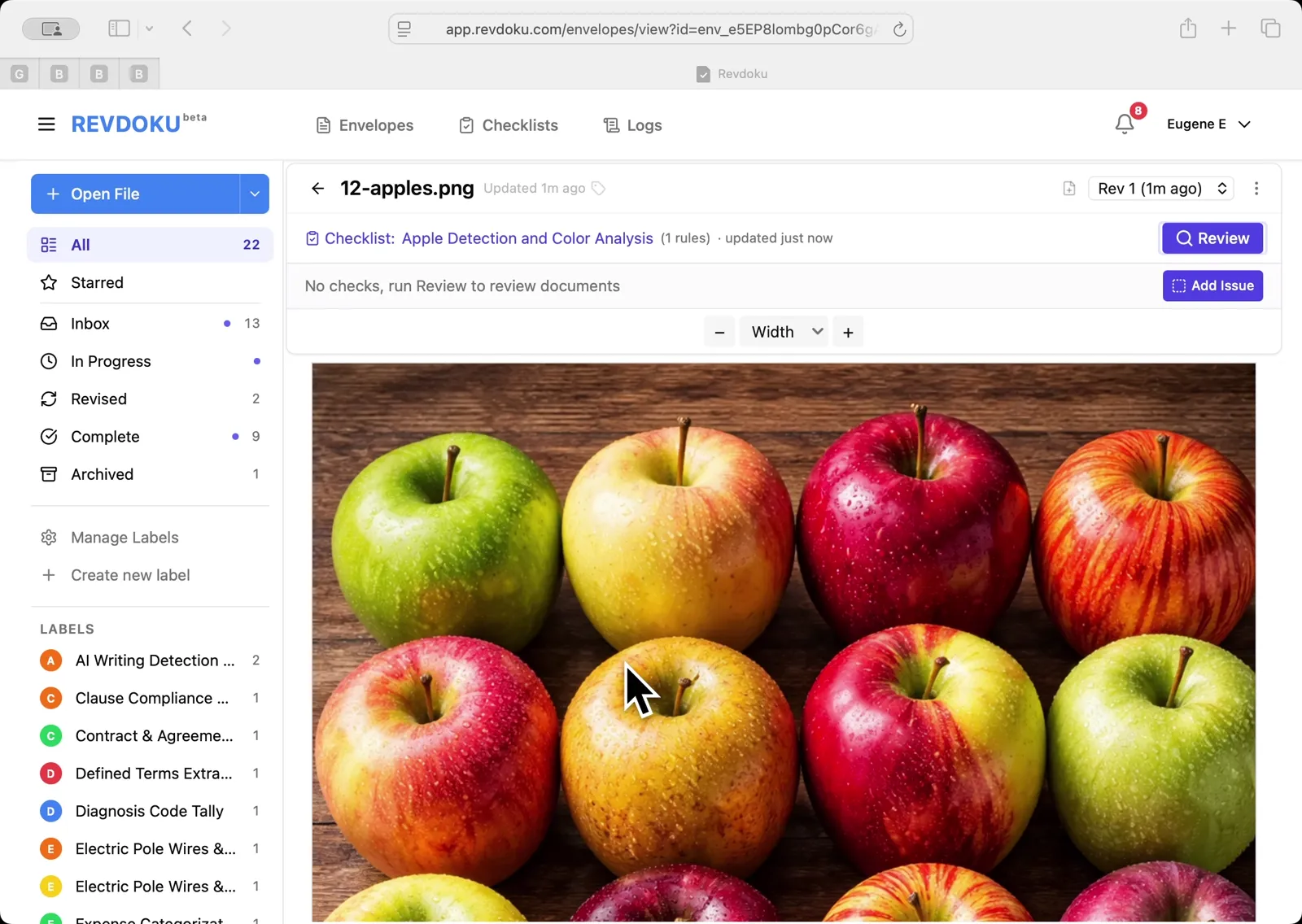
Count Unique Apple Colors in a Photo with Revdoku
Detects all 12 apples in a top-down photo and tags each by dominant color: 4 variegated, 3 red, 3 yellow, 2 green. Group-and-sum script totals 12.
Count Candies by Color in a Photo with Revdoku
Counts a pile of M&M-style candies by color: 7 checks pass at 100%, totaling 113 candies. Group-and-sum script aggregates per-color counts.
Audit a Shareholder Letter for Disclosure Completeness with Revdoku
Generate a document-quality checklist from a single-line prompt with Revdoku, run it against a Letter to Shareholders from a public company, and read the per-rule pass/fail audit report.