Publish websites from Gemini with Revdoku
Use Revdoku with the Gemini CLI and other MCP-capable Gemini agents. Sign in, save a private draft, review a temporary preview, and publish when ready.
Just ask to “publish to Revdoku” to publish your as a fast and secure website
from your Codex, Claude or another AI apppublish files or folders
Paste this into your AI app.
Install the Revdoku skill in your AI app.
npx skills add revdoku/revdoku --skill revdoku -gChoose your AI app to connect through MCP.
codex mcp add revdoku --url https://app.revdoku.com/mcp
codex mcp login revdoku
claude mcp add --transport http revdoku https://app.revdoku.com/mcp
claude mcp login revdoku
https://app.revdoku.com/mcpFree · Public or protected · Visitor analytics · Forms and email alerts Building websites for clients? Explore Revdoku for agencies
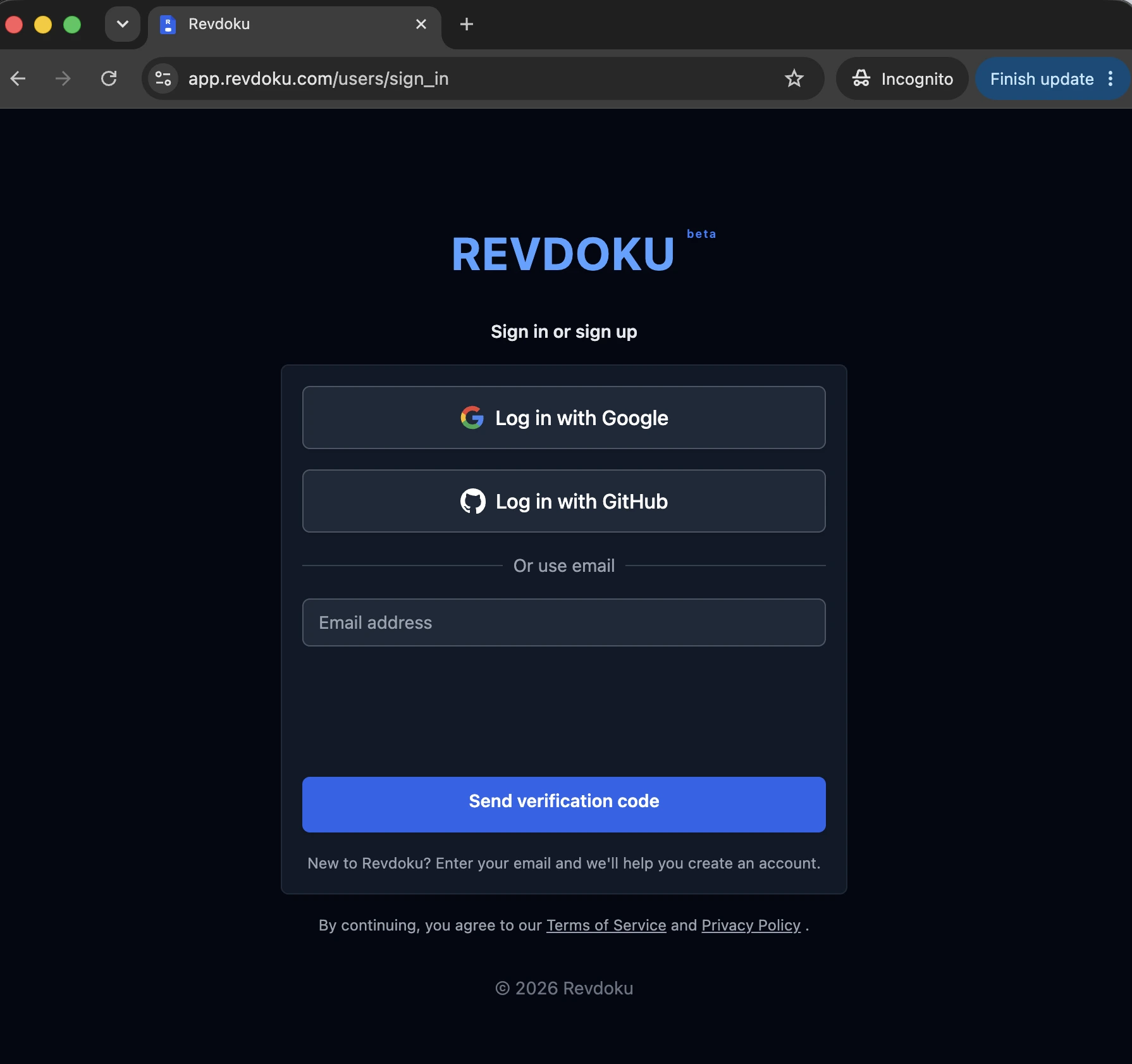
1. Publish the first preview
When Gemini has local shell access, ask it to build the static site in a folder
and run revdoku preview <folder>. Revdoku opens browser sign-in, where you can
create a Free account if needed. The preview lasts 15 minutes. After review, ask
Gemini to run revdoku p <folder>; later publishes from that bound folder keep
the same main website URL.
2. Connect an existing account
After signing in, open the Revdoku app and click New, then choose Copy Instructions for AI. This copies the current Revdoku connection message for Gemini, Claude, ChatGPT, Codex, and similar agents.
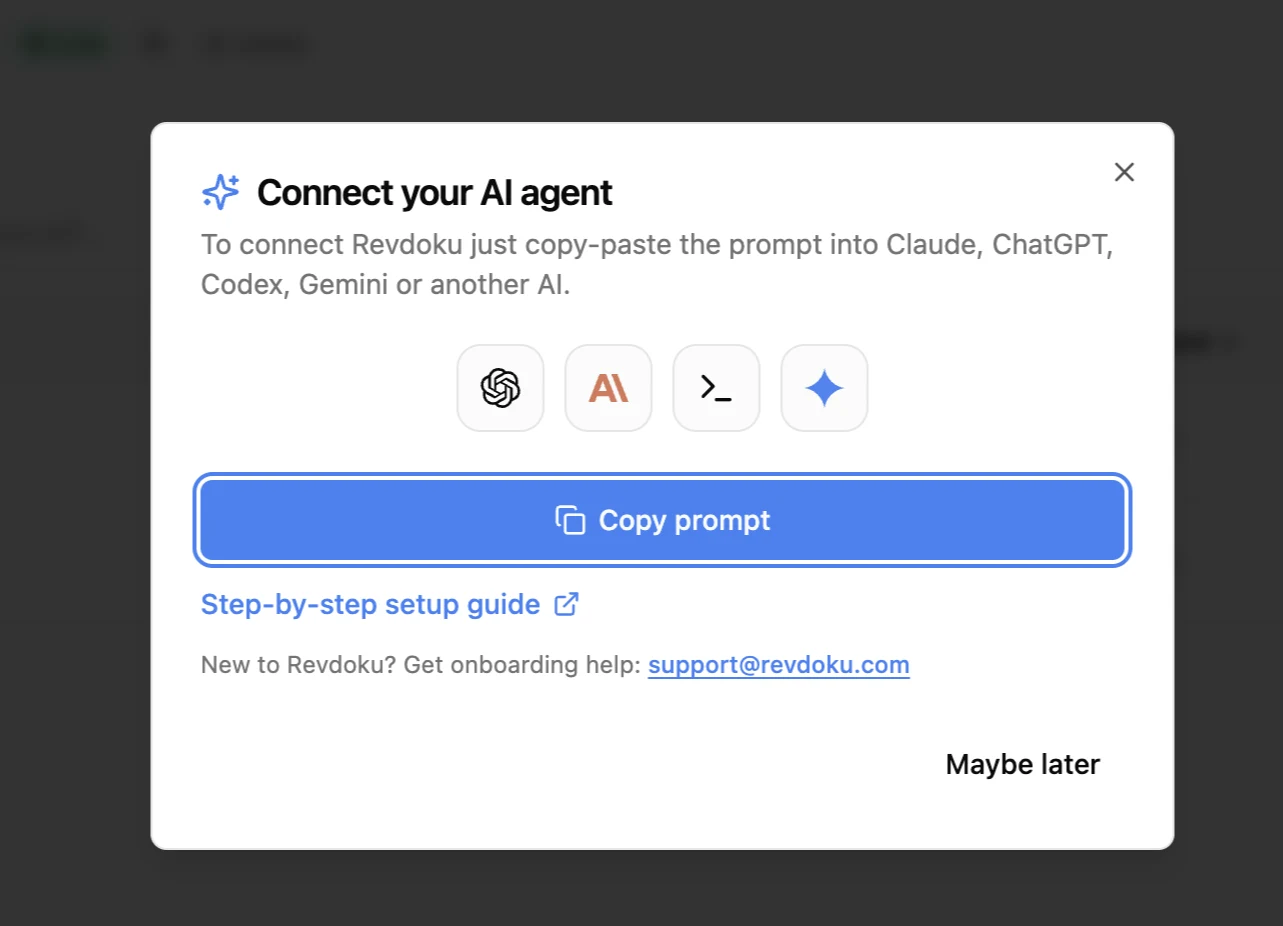
Paste the copied message into your Gemini session and send it. Gemini follows the instructions and connects Revdoku to your account.
3. Connect the Gemini CLI manually
Prefer a manual setup? Add Revdoku with one command (-s user makes it available in every project):
gemini mcp add --transport http --scope user revdoku https://app.revdoku.com/mcpOr open ~/.gemini/settings.json (or .gemini/settings.json in your project) and add Revdoku under mcpServers:
{
  "mcpServers": {
    "revdoku": {
      "httpUrl": "https://app.revdoku.com/mcp"
    }
  }
}
Then restart the Gemini CLI. Revdoku uses OAuth, so Gemini opens a browser window to sign in to your Revdoku account. Run /mcp auth revdoku inside Gemini CLI if authentication does not start automatically. The same mcpServers config also works for Gemini Code Assist in agent mode.
For a local folder or binary assets, use the Revdoku CLI and skill installer; a hosted MCP server cannot read your computer’s files.
You’ve connected Revdoku. Now just ask
publish to Revdokuand Gemini publishes it as a live URL.
Test the Gemini connection
Once connected, ask Gemini to build a small static website, save the files in Revdoku, publish index.html, and return the live link.
A good first test prompt:
Create a one-page project status website, save the files in Revdoku, publish it, and give me the public URL. If I ask for changes later, update the same Revdoku bucket and republish the same URL.
Check that the returned link opens, then ask for one small change and confirm the same bucket is updated instead of creating a new site.
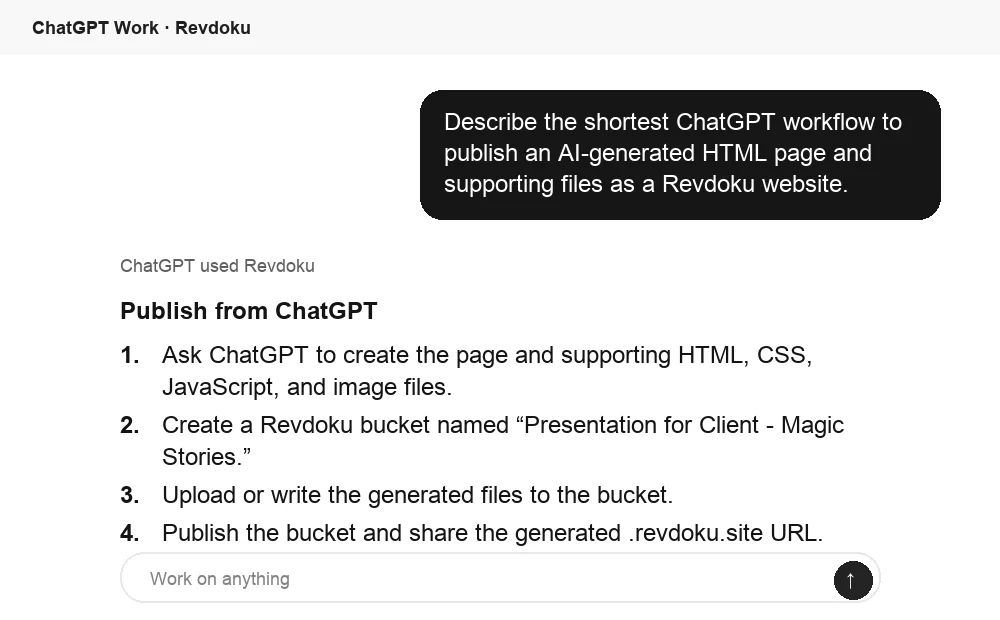
Check the Revdoku result from ChatGPT
If Revdoku is also connected in ChatGPT, you can ask ChatGPT to inspect the same bucket or summarize the publish workflow after Gemini creates the files.
Takeaway
Use the local client for local files and hosted MCP for remotely generated text files or an existing website. Both require Revdoku authentication; preview before publishing when the site has not been reviewed.
Other ways to connect
- Connect your AI tool to Revdoku: every supported agent in one place.
- Local command-line setup: the generic CLI agent flow that works with any MCP-capable terminal agent.