How to Choose the Right Website Access Mode in Revdoku
Choose access based on who should see your website and whether you need a verified email address from each visitor.
| Access | What the visitor needs | Best fit |
|---|---|---|
| Public | The URL | Landing pages, portfolios, public reports |
| Password | A shared site password | Private previews and small review groups |
| Require Email | An email address and its one-time verification code | Client portals and reports with identified visitors |
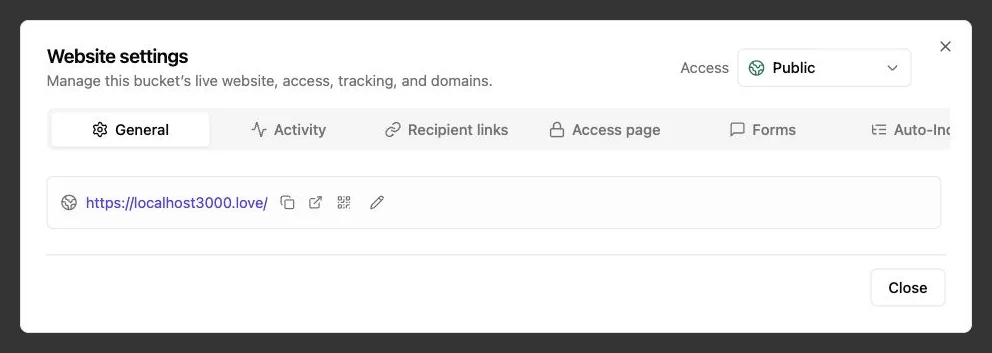
Public: anyone can open the link
Use Public for content intended to be shared freely. A public URL is not private just because you have sent it to only one person. Public account websites are indexable by default; search visibility is a separate setting.
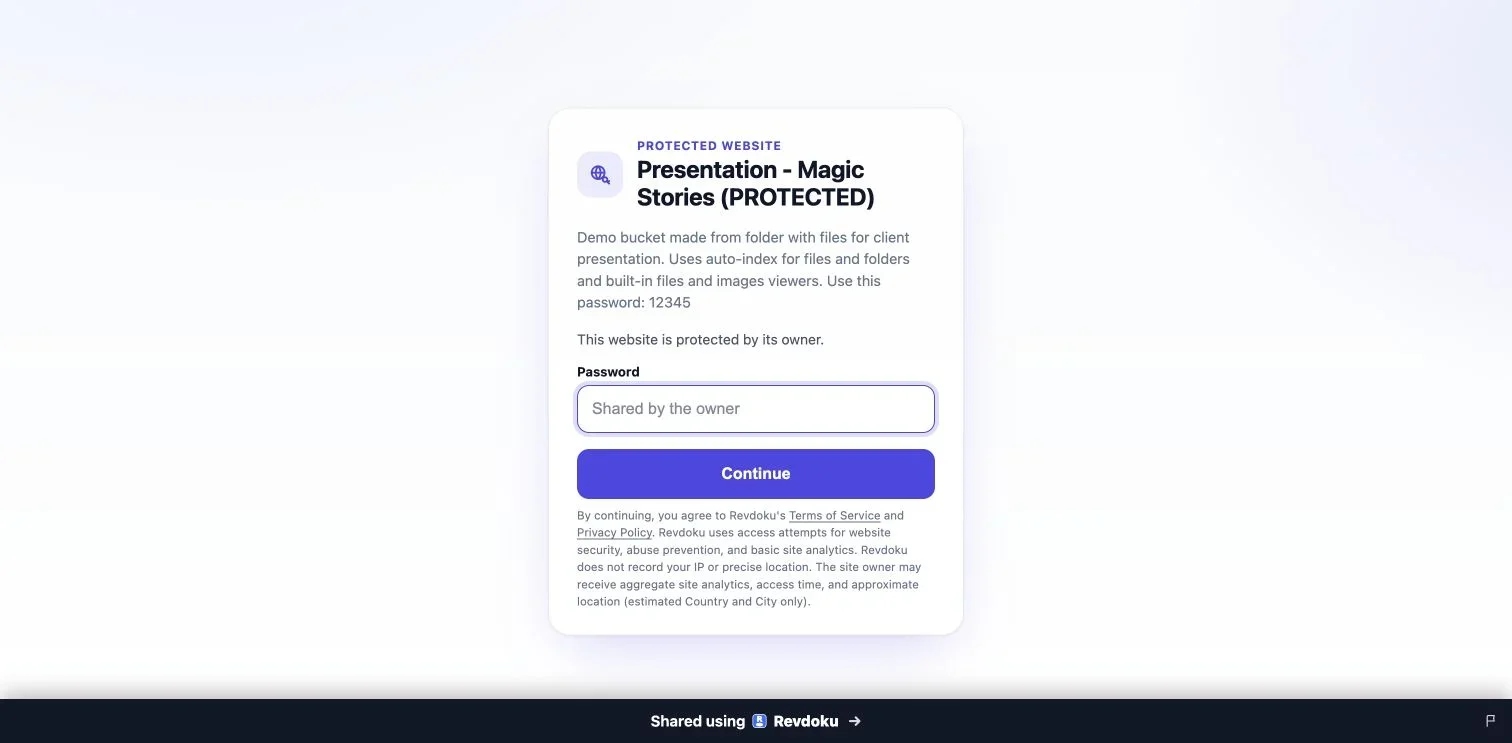
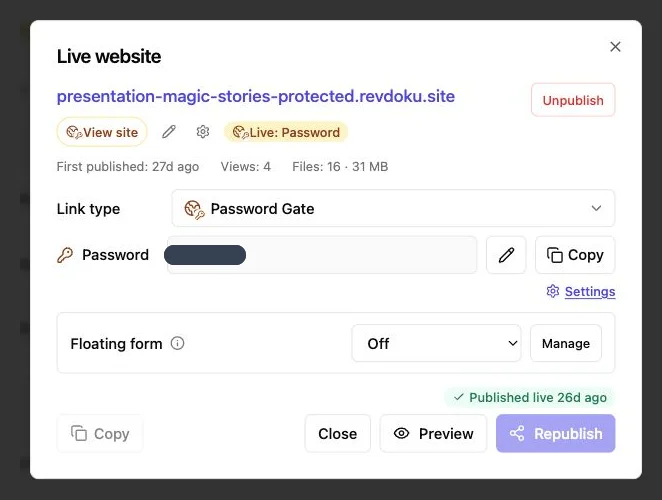
Password: a shared gate
Use Password when everyone in a group can use the same password. It protects the content without requiring each visitor to have an email account.
The sample password is displayed on this public demo. Keep a real private-site password out of the gate description.
A password unlock does not, by itself, identify a person. If you add an email field to the password form, that submitted address is not equivalent to verified-email access.
Require Email: verify the address
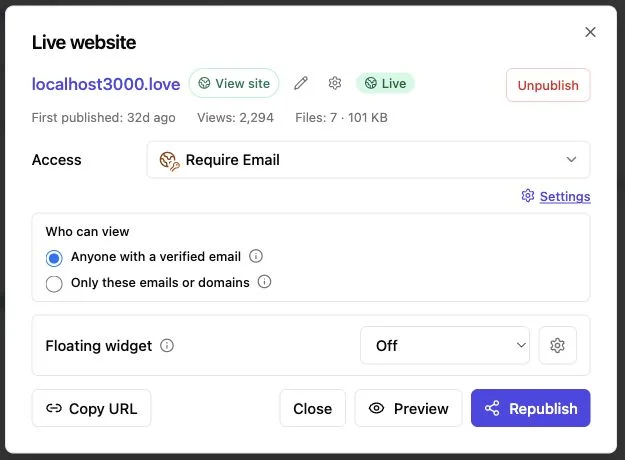
Use Require Email when the visitor’s email matters. Revdoku sends a one-time code to that address. There is no shared site password.
You can admit anyone with a verified email or limit access to specific emails or domains. An open email gate identifies an address; an allowlist also limits who may enter.
What can analytics tell you?
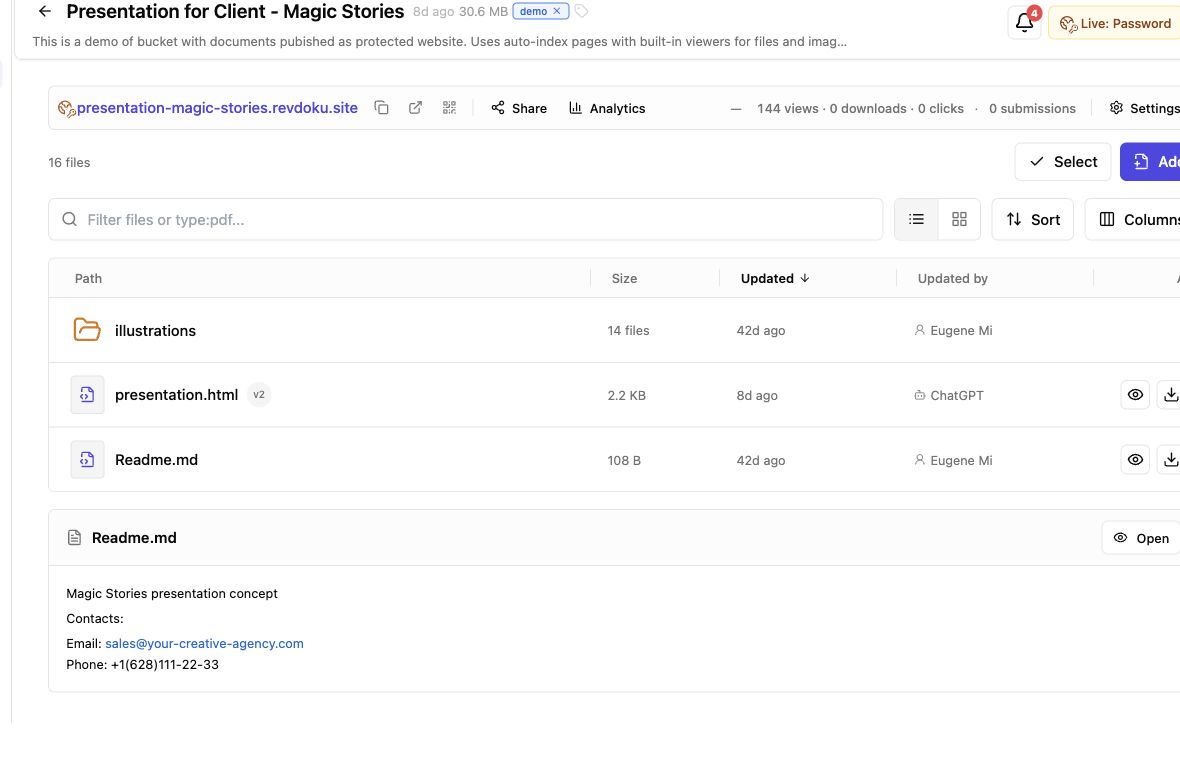
Password access can show unlock activity without identifying the visitor. Require Email can associate authorized activity with the verified address. Neither an open nor a download proves that someone read, understood, or approved the content.
Analytics detail and retention depend on the plan. Free includes one permanent Password website; Require Email requires a paid plan for a permanent website and can be tested in a temporary preview.
Change access without changing the URL
Open the site’s publishing controls, choose the new mode, and republish. Check the result in a private browser window before sharing it. If you use a connected AI, ask it to change the access mode on the existing bucket and confirm the completed publication.
See the password-protection walkthrough for a step-by-step test.
Just ask to “publish to Revdoku” to publish your as a fast and secure website
from your Codex, Claude or another AI apppublish files or folders
Paste this into your AI app.
Install the Revdoku skill in your AI app.
npx skills add revdoku/revdoku --skill revdoku -gChoose your AI app to connect through MCP.
codex mcp add revdoku --url https://app.revdoku.com/mcp
codex mcp login revdoku
claude mcp add --transport http revdoku https://app.revdoku.com/mcp
claude mcp login revdoku
https://app.revdoku.com/mcpFree · Public or protected · Visitor analytics · Forms and email alerts Building websites for clients? Explore Revdoku for agencies
Related Articles
Secure File Sharing for Clients: A Practical Guide
Learn how to securely share client files, control access, manage versions, collect feedback, and track engagement with one link.
Password Link vs Public Link: Secure Sharing Guide
Compare public, password-protected, and verified email links to choose the right security, visitor tracking, and sharing experience.
How to Password Protect a Website Securely
Learn how to protect websites, static pages, files, and client work with server-side passwords, verified email, and secure access controls.