How to Password-Protect a Revdoku Website
A Revdoku website can be public, protected by a shared password, or restricted to visitors who verify their email. For a small review group, a password is the quickest option.
1. Prepare the files
Open the bucket containing your website or documents. Upload the files you want visitors to see. An index.html file becomes the homepage; without one, Revdoku can display a file listing with built-in viewers.
2. Choose Password access
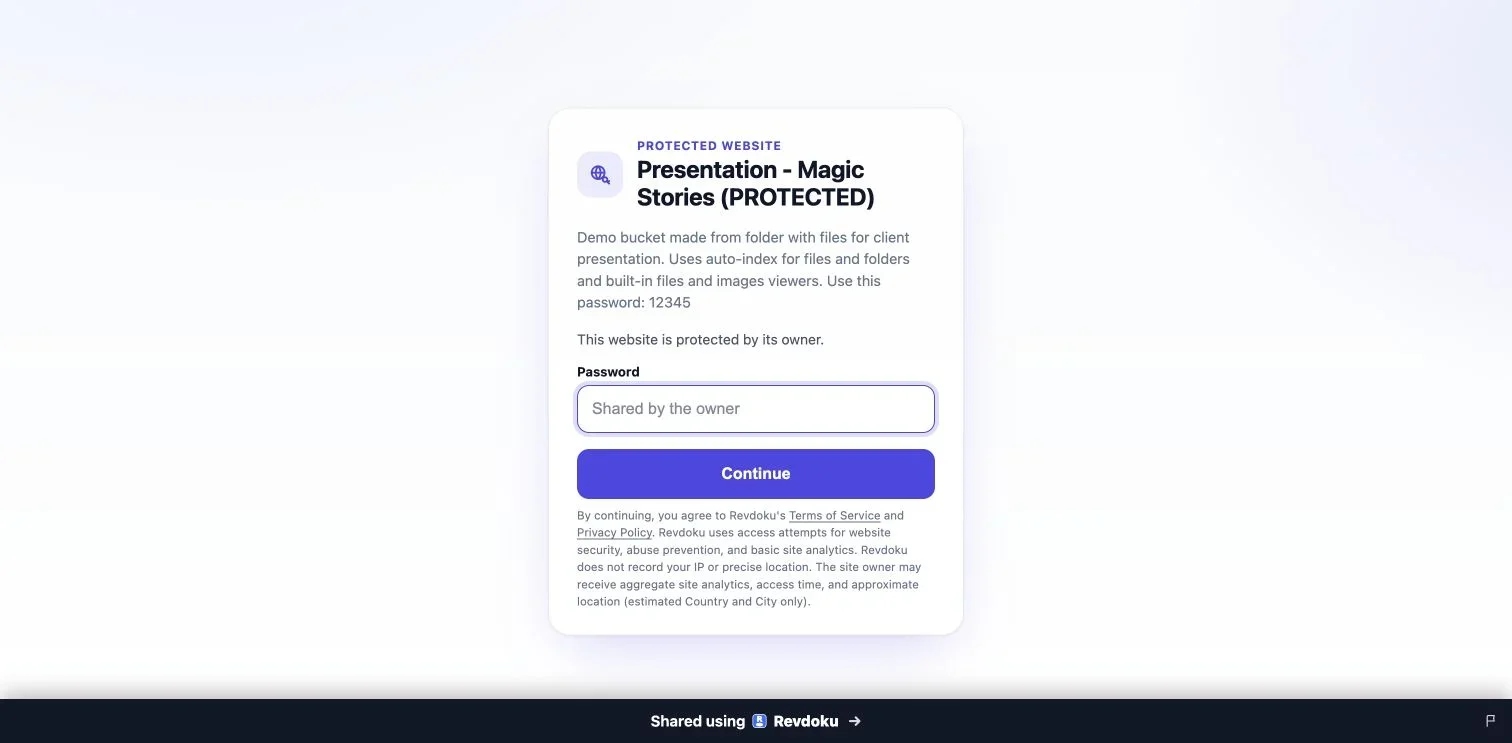
Open the website’s publishing controls and choose Password. Revdoku provides a shared website password. Publish the site, or republish if it is already live, and wait for publication to finish before sending the link.
A Free account includes one permanent password-protected website. See pricing for current limits.
3. Test the visitor experience
Open the published URL in a private browser window. Check that the gate appears before your content, then enter the password and open a file. Test a direct link to a document as well as the homepage.
This public demonstration displays its sample password so anyone can try the viewer. For a private site, share the password separately with your intended viewers.
4. Decide what the gate shows
Use the access-form settings to choose whether visitors see your title and description before opening the site. If either reveals private information, hide it. Preview the gate before sharing.
5. Need verified visitor emails instead?
Choose Require Email when you need visitors to verify an email address. They receive a one-time code; they do not need a shared site password. You can allow any verified email or restrict access to selected addresses or domains.
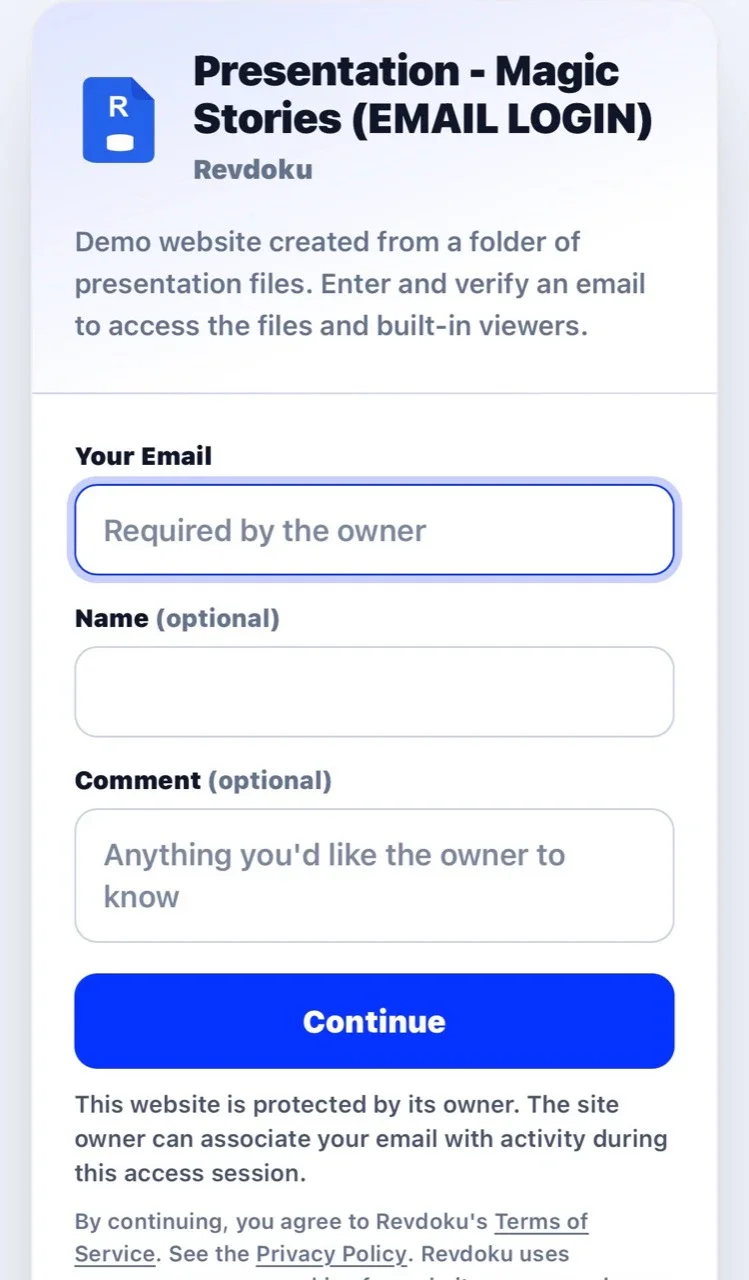
Require Email needs a paid plan for a permanent website. Free accounts can test it in a temporary preview. Adding an ordinary email field to a password gate is not the same as verifying ownership of that address.
6. Update without changing the link
Save changed files to the same bucket, then republish. Saving a draft alone does not update the live website. Open the shared URL again to check both the content and the access gate.
For a comparison of the options, see which website access mode to choose.
Just ask to “publish to Revdoku” to publish your as a fast and secure website
from your Codex, Claude or another AI apppublish files or folders
Paste this into your AI app.
Install the Revdoku skill in your AI app.
npx skills add revdoku/revdoku --skill revdoku -gChoose your AI app to connect through MCP.
codex mcp add revdoku --url https://app.revdoku.com/mcp
codex mcp login revdoku
claude mcp add --transport http revdoku https://app.revdoku.com/mcp
claude mcp login revdoku
https://app.revdoku.com/mcpFree · Public or protected · Visitor analytics · Forms and email alerts Building websites for clients? Explore Revdoku for agencies
Related Articles
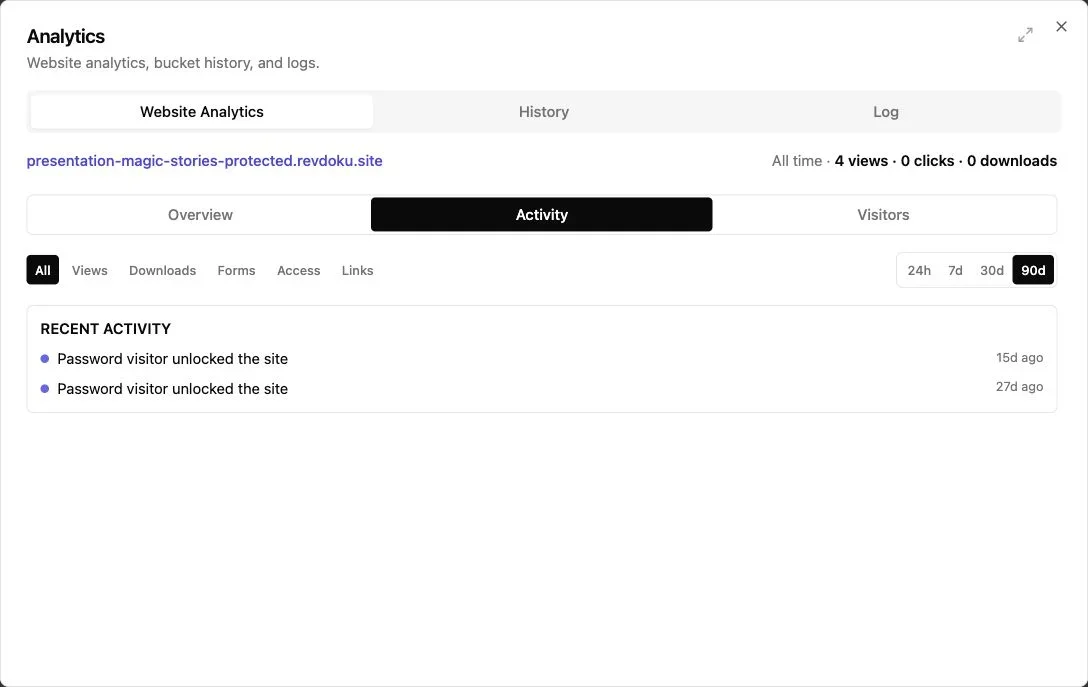
Follow Up After Someone Opens a Protected Revdoku Site
Use visitor activity settings, traffic analytics, and visitor-level analytics to see who opened a protected Revdoku site and follow up.
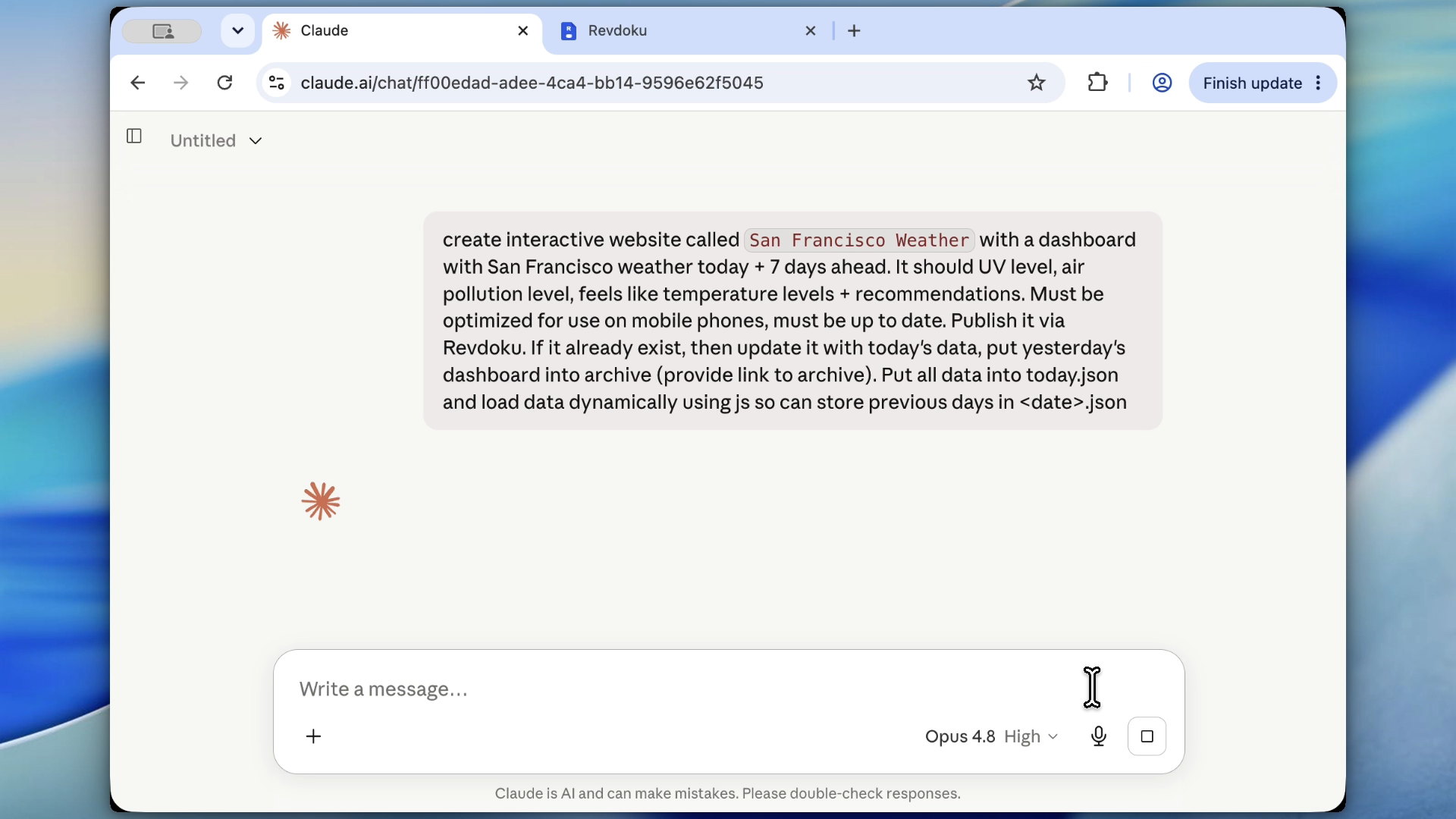
Publish a Password-Protected Website with Revdoku
Learn how to publish a Revdoku website, add password protection, require email access, and review protected-site visitors.
How to Choose the Right Website Access Mode in Revdoku
Compare Public, Password, and Require Email access for Revdoku websites, including visitor verification and plan limits.