How to Password Protect a Netlify Site
Yes. Netlify provides native Password Protection and other visitor access controls, but availability depends on your team, project, and enabled security features. Check the current project configuration; not every Netlify site has the same controls.
TL;DR: Netlify password protection adds a host-level password gate, unlike a JavaScript form in your website code.
Netlify visitor access choices
| Option | Native availability | Best use |
|---|---|---|
| Password Protection | Account- and configuration-dependent | Shared-password site access |
| Project visibility controls | Supported configurations | Public or restricted project access |
| Role-based access with JWT | Technical setup | Application-specific users and roles |
| Basic Auth with custom headers | Technical option | Custom authentication workflows |
| Revdoku protected hosting | Separate host for exported files | Client sites and documents |
Netlify’s current Password Protection overview and Secure access to sites pages describe the available controls. Do not rely on an old plan name or screenshot; use the settings displayed in your dashboard.
How to password-protect a Netlify site
Interface wording may change:
- Open the Netlify dashboard.
- Select the project.
- Open Project configuration or Site configuration.
- Find Visitor access or the secure-access settings.
- Choose Password Protection.
- Enter the password and confirm whether it applies at the project or team level.
- Save the change.
- Test incorrect and correct passwords in a private browser window.
If the option is absent, check the account’s current feature eligibility and your role’s visitor-access permissions. Do not substitute a browser-only password.
Understand Netlify visitor access scope before sharing
A team-level default may affect multiple projects, while a project-level override may affect one site. Review covered deployments and URLs, including deploy previews and custom domains.
Inspect bypass, identity, role, and header-based rules. One route may be protected while another remains intentionally open.
Netlify documents Basic Authentication through custom HTTP headers separately. Use it only if you understand how credentials, headers, caches, and deploys interact.
Use Revdoku for a client deliverable
For a static site, AI-generated app, PDF, report, or folder:
- Export or build the final browser-ready files.
- Remove secrets, source maps, private notes, and unused development artifacts.
- Upload the finished output to Revdoku.
- Choose Password or Verified email access.
- For named audiences, add email or domain allowlists.
- Test the protected link while signed out.
Revdoku hosts exported files separately; it does not password-protect the existing Netlify URL.
The protected link can send visitor notifications and show page, click, and download activity. You can update the website or replace a PDF without changing the client’s URL.
Netlify Password Protection or Revdoku?
Use Netlify’s native protection when the site is hosted there, the feature is available, and its deployment workflow fits the project.
Use Revdoku for controlled client review. It combines password or verified-email access, address and domain allowlists, visitor activity, and stable file updates.
Bottom line
Make eligible Netlify sites private with Password Protection. Enable it in current visitor-access settings and test every relevant URL. For the same exported static output, Revdoku offers separate protected hosting for client delivery and viewer tracking.
Just ask to “publish to Revdoku” to publish your as a fast and secure website
from your Codex, Claude or another AI apppublish files or folders
Paste this into your AI app.
Install the Revdoku skill in your AI app.
npx skills add revdoku/revdoku --skill revdoku -gChoose your AI app to connect through MCP.
codex mcp add revdoku --url https://app.revdoku.com/mcp
codex mcp login revdoku
claude mcp add --transport http revdoku https://app.revdoku.com/mcp
claude mcp login revdoku
https://app.revdoku.com/mcpFree · Public or protected · Visitor analytics · Forms and email alerts Building websites for clients? Explore Revdoku for agencies
Frequently Asked Questions
Is Netlify Password Protection the same as adding a password form to my website?
No. Netlify’s native feature places a host-level access gate in front of the site, while a JavaScript form usually hides content only in the browser and can be bypassed.
Why can’t I find Password Protection in my Netlify settings?
Availability can depend on your account, team, project configuration, enabled security features, and user permissions. Check the current visitor-access settings and feature eligibility shown in your Netlify dashboard.
Does enabling a password protect every Netlify deployment and URL?
Not necessarily. Confirm whether the rule applies at the project or team level, then test production domains, custom domains, deploy previews, and any routes with bypass or header-based rules.
How should I test a password-protected Netlify site?
Open each relevant URL in a private browser window and try both an incorrect and the correct password. Also verify that unauthenticated visitors cannot reach alternate domains, previews, or routes that should be restricted.
When should I use JWT roles or Basic Authentication instead?
Use JWT-based access when your application needs individual users, roles, or application-specific authorization. Basic Authentication through custom headers is better suited to controlled technical workflows, but it requires careful handling of credentials, caching, headers, and deployments.
When is Revdoku a better choice than Netlify Password Protection?
Revdoku is useful for controlled client review of exported sites, PDFs, reports, or file collections. It supports password or verified-email access, allowlists, visitor activity, and updates that keep the same client-facing URL.
Will Revdoku protect my existing Netlify URL?
No. Revdoku hosts the exported files separately and provides its own protected link. Remove secrets, source maps, private notes, and unnecessary development files before uploading the deliverable.
History
- August 10, 2026 — Published by Revdoku Content Team
- August 1, 2026 — Reviewed by Eugene Mi
- September 5, 2026 — Last updated by Revdoku Content Team.
Related Articles
How to Migrate a Grok Build Website to Revdoku
Safely migrate a Grok Build website from grok.me to Revdoku using a direct transfer or ZIP, then test routing, assets, and access.
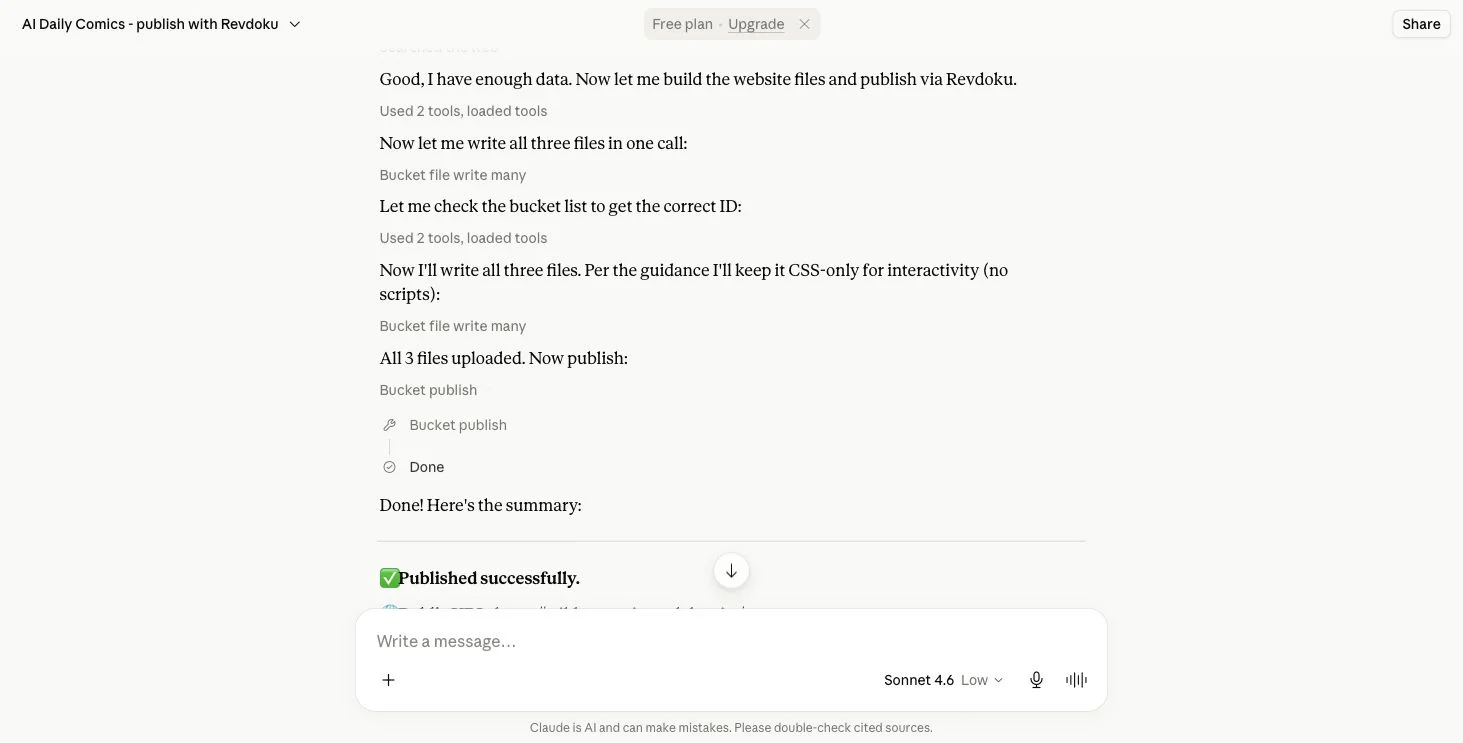
How to Migrate a Claude Artifact to Revdoku
Learn how to export, transfer, test, and securely publish a Claude Artifact as a static website on Revdoku.
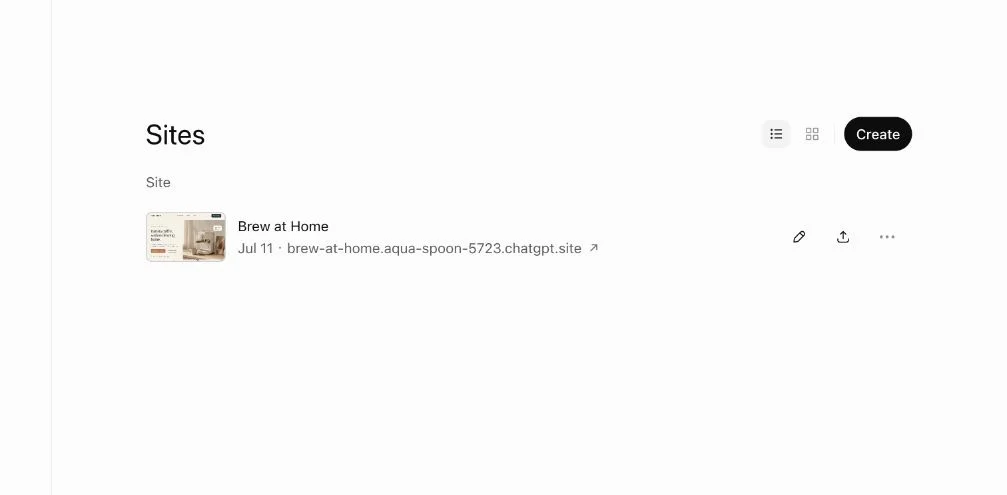
How to Export ChatGPT Sites and Move Your Files
Learn how to export a ChatGPT Site, verify every file, move it to Revdoku or another static host, test the preview, and retire the original.