Publish a Document Folder as a Revdoku Website
Table of Contents
- 1. Start with a bucket that contains a normal document folder
- 2. Publish files as a website from the bucket
- 3. Let Revdoku render Markdown and text files on the website
- 4. Open HTML files with the HTML viewer as live pages
- 5. Browse nested folders with generated folder navigation
- 6. Choose public or protected access
- 7. Why this workflow is useful
- Summary
- 1. Start with a bucket that contains a normal document folder
- 2. Publish files as a website from the bucket
- 3. Let Revdoku render Markdown and text files on the website
- 4. Open HTML files with the HTML viewer as live pages
- 5. Browse nested folders with generated folder navigation
- 6. Choose public or protected access
- 7. Why this workflow is useful
- Summary
This tutorial uses the Presentation - Magic Stories bucket to show a simple Revdoku pattern: upload mixed files, publish them as a website, and let Revdoku generate navigation and viewers.
The source bucket contains:
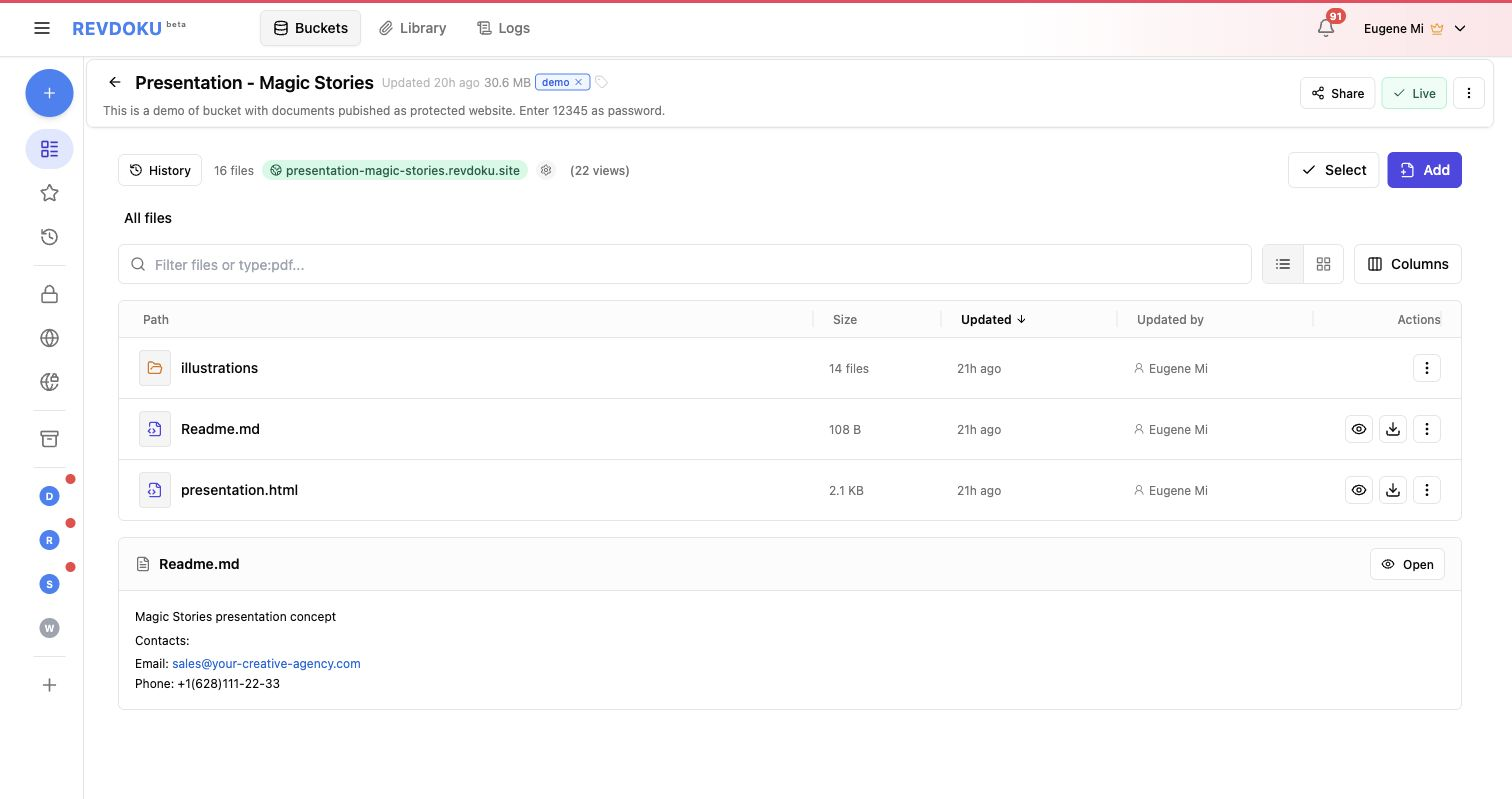
Readme.mdpresentation.htmlillustrations/with 14 image files
The screenshots below show the Magic Stories sample project. Browse current live examples.
1. Start with a bucket that contains a normal document folder
In Revdoku, the owner view shows the bucket as a file workspace. This example has 16 files total: one Markdown file, one HTML file, and 14 image files in a nested folder.
The bucket also shows the live website URL and view count, so the owner can manage files and publishing in one place.
2. Publish files as a website from the bucket
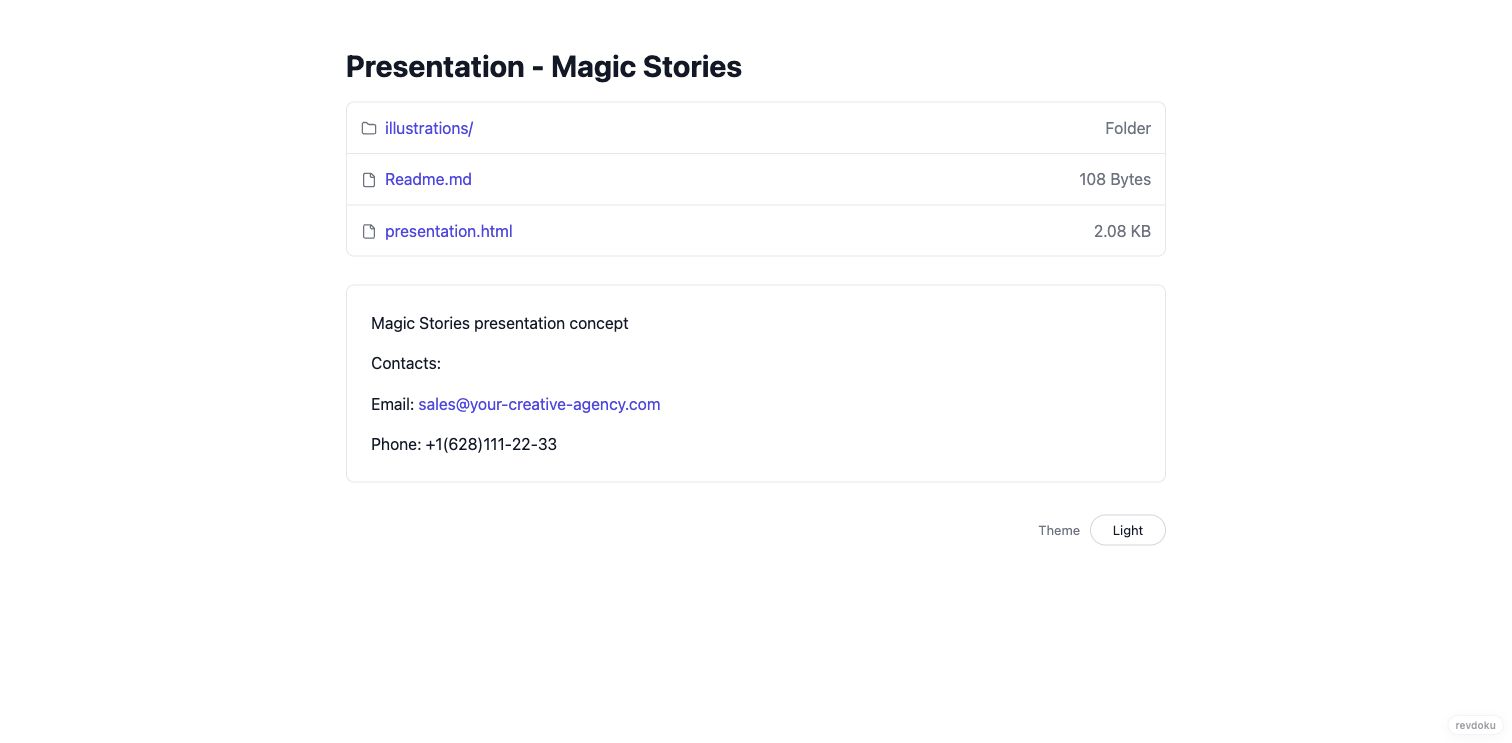
When published, Revdoku creates a live Markdown website from the folder structure. The public site needs no custom frontend or separate hosting project.
At the public URL, Revdoku automatically creates:
- A page title from the bucket name.
- A file list with folder navigation and file links.
- Inline rendering through a built-in file viewer for the default readable file.
- Built-in navigation into nested folders.
- A theme switch for the generated viewer.
3. Let Revdoku render Markdown and text files on the website
The Readme.md file is rendered directly on the published index page. This is useful for client folders, report packages, launch notes, research bundles, and any folder where the README should orient visitors.
In this example, the README introduces the Magic Stories presentation and includes contact details. The visitor does not need to download the Markdown file or open an editor because the built-in viewer handles it.
Practical use:
- Put
Readme.mdat the root of the folder. - Use it as the landing note for the published site.
- Include instructions, links, contact details, or a summary of the files.
- Publish the bucket.
Revdoku turns the folder into a readable document website.
4. Open HTML files with the HTML viewer as live pages
The same bucket includes presentation.html. On the published site, the HTML viewer opens it as a live webpage.
This helps when an AI agent, design tool, or local script generates an HTML report, prototype, dashboard, or presentation. Instead of building a deployment pipeline, publish files through Revdoku and share the URL.

5. Browse nested folders with generated folder navigation
The illustrations/ folder becomes a folder page. Revdoku lists each file with its size and last-updated timestamp and includes a parent-folder link so visitors can move back up the tree.
This keeps supporting assets available without manual index pages.
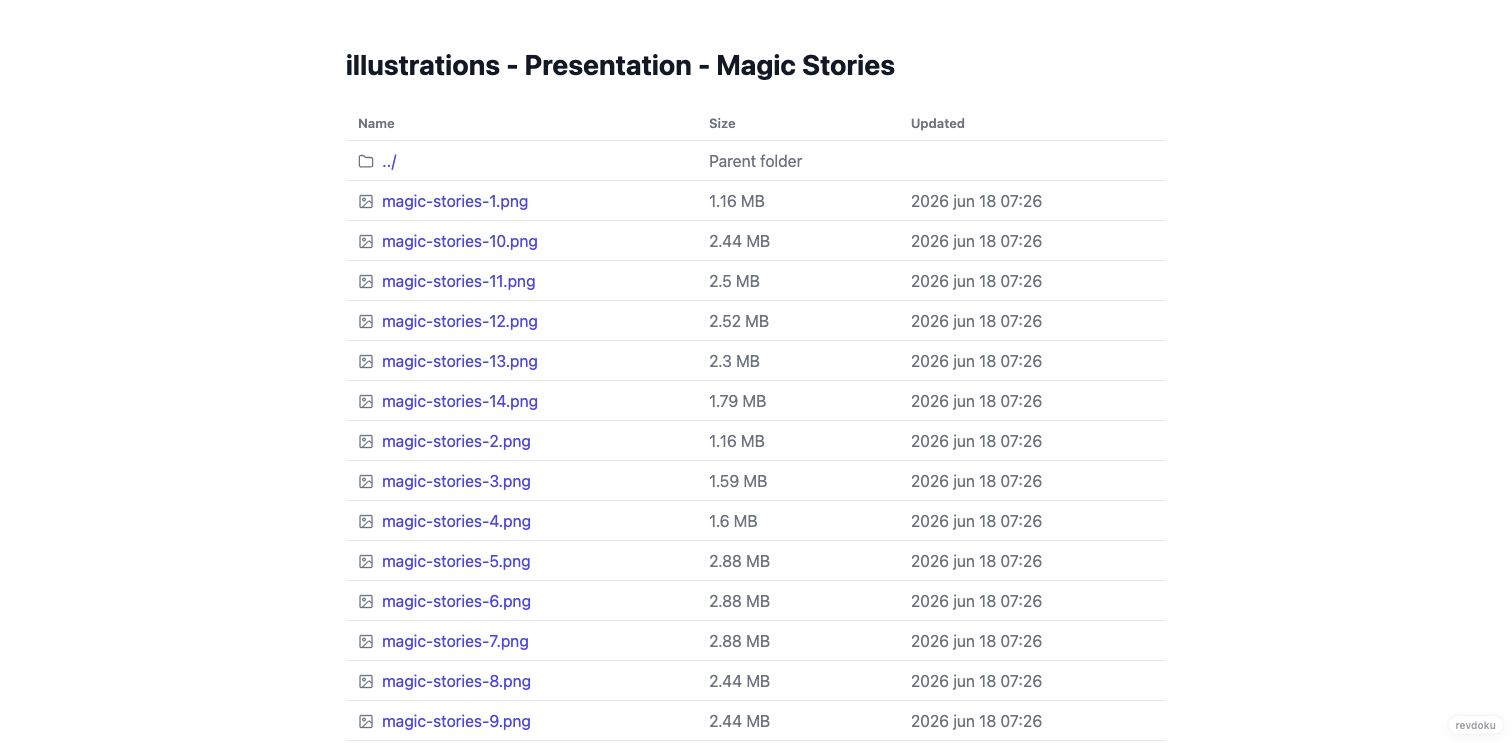
Media files use the same published site path, so mixed document packages can keep Markdown notes, HTML pages, images, PDFs, CSV files, and other assets together.
6. Choose public or protected access
The publishing dialog shows site status, URL, file count, view count, and access mode. Here, the bucket is published as Public.
The same dialog can switch the site to:
PublicPasswordRequire Email: Visitors verify their email address using a one-time email code, not a shared password. For plan details, see access modes.
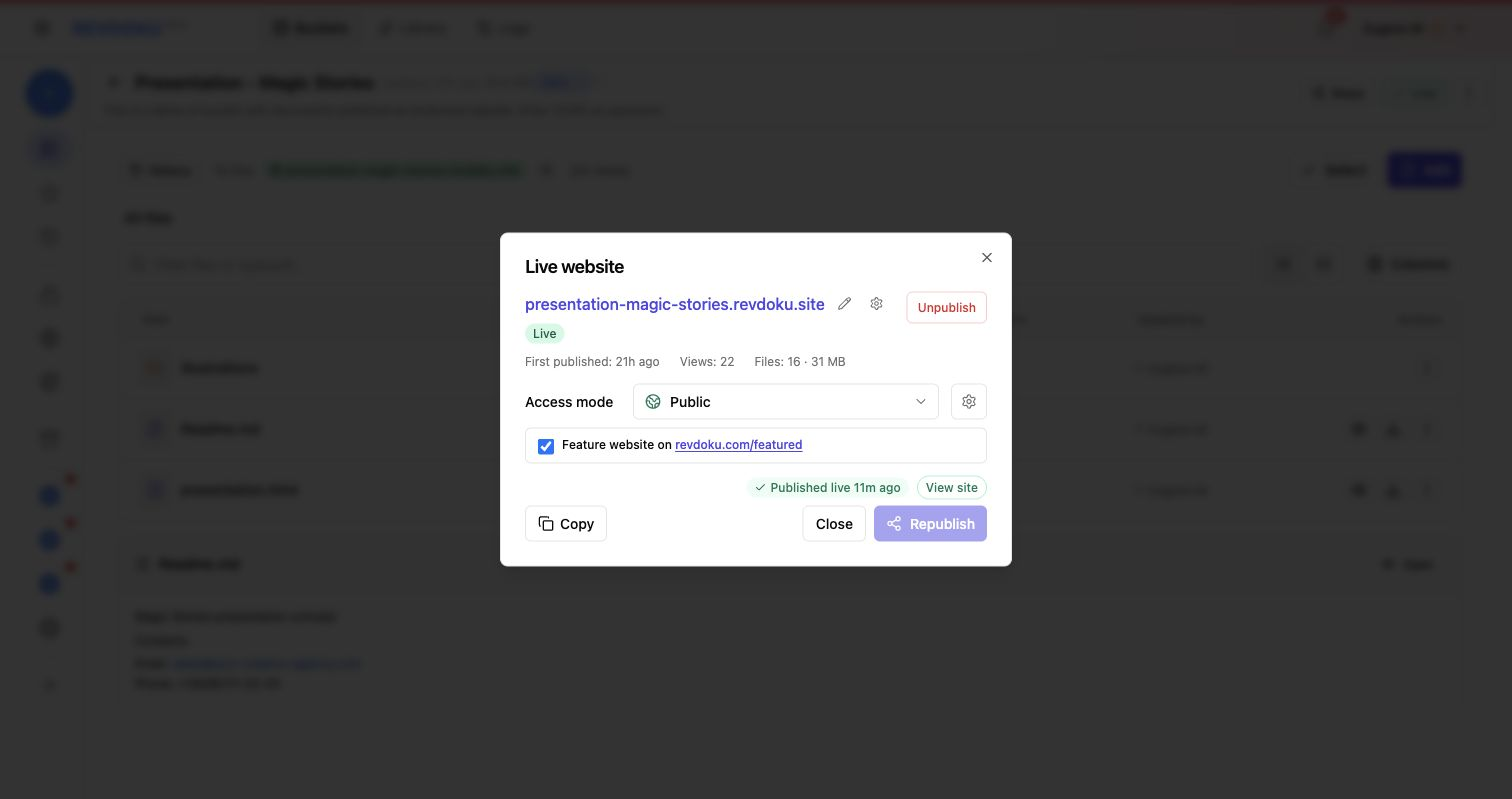
Use Public for anyone with the link.
Use Password for a real access gate.
Use Require Email to see who opened the folder and use visitor analytics for follow-up.
7. Why this workflow is useful
This workflow keeps the folder simple. A user or AI agent can produce ordinary files, and Revdoku handles publishing.
Good examples:
- Client document packets.
- Investor or board updates.
- Generated HTML reports.
- Product presentations.
- Research folders with notes and media.
- AI-generated dashboards.
- Static app prototypes.
- Design review bundles.
The owner can add or replace files, then republish the Revdoku document website at the same URL. Visitors use the same link.
Summary
The Magic Stories bucket shows Revdoku as a lightweight document website publisher:
- Upload a normal folder.
- Keep Markdown, HTML, media, and subfolders together.
- Publish the bucket as a live website.
- Let Revdoku create the navigation and viewers.
- Share it publicly or protect it with password access.
- Keep the same URL as files change.
This is especially useful when Claude, ChatGPT, Codex, or another AI agent creates useful output and the next step is simply to “make this real and shareable.”
Just ask to “publish to Revdoku” to publish your as a fast and secure website
from your Codex, Claude or another AI apppublish files or folders
Paste this into your AI app.
Install the Revdoku skill in your AI app.
npx skills add revdoku/revdoku --skill revdoku -gChoose your AI app to connect through MCP.
codex mcp add revdoku --url https://app.revdoku.com/mcp
codex mcp login revdoku
claude mcp add --transport http revdoku https://app.revdoku.com/mcp
claude mcp login revdoku
https://app.revdoku.com/mcpFree · Public or protected · Visitor analytics · Forms and email alerts Building websites for clients? Explore Revdoku for agencies
Frequently Asked Questions
What kinds of files can I publish in a Revdoku bucket website?
You can publish a mixed folder that includes Markdown, HTML, images, PDFs, CSV files, and other supporting assets. Revdoku keeps the folder structure intact and generates navigation so visitors can browse files without needing a custom site.
Do I need to build a frontend or configure hosting?
No. Revdoku turns the uploaded bucket into a live website and provides the public URL. This is useful when you already have useful files and simply need a shareable, readable web version.
Why should I include a Readme.md file?
A root Readme.md works well as the landing note for the published folder. It can explain what the package contains, give instructions, add links, or provide contact details so visitors know how to use the files.
Can HTML files run as live pages?
Yes. Revdoku can open an HTML file through its built-in viewer as a live webpage. This is practical for generated reports, prototypes, dashboards, presentations, or other static HTML outputs.
What happens to nested folders?
Nested folders become browsable folder pages on the published site. Revdoku lists the files, shows useful metadata such as size and update time, and includes navigation back to the parent folder.
How should I choose between public and password access?
Use public access when anyone with the link can view the folder. Use password access when the files should be gated. If follow-up matters, the email option can help identify visitors and support basic outreach.
Can I update the files after publishing?
Yes. The owner can add, replace, or reorganize files and then republish the bucket. Visitors can keep using the same Revdoku website URL as the underlying document package changes.
Related Articles
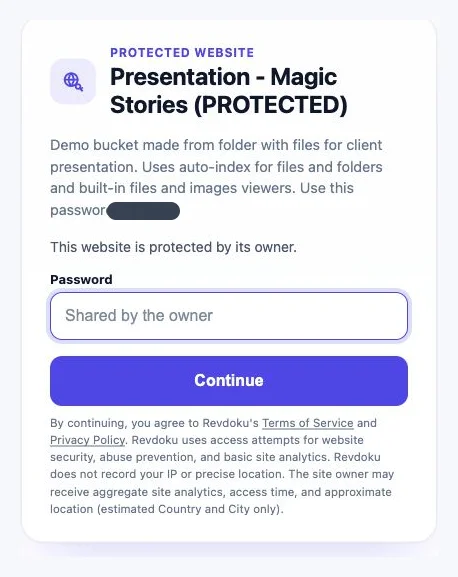
Password Protected Website Sharing for Clients
Securely share proposals, reports, and demos on a password protected website with stable links, analytics, and client feedback.
Pagecast, Cloudflare Pages, and Revdoku: Three Ways to Publish AI-Generated Reports
Compare developer hosting, report-first tools, and Revdoku buckets for publishing AI-generated reports with access control and analytics.