Publish Claude files and websites with Revdoku
The fastest path is manual: download Claude’s output, drag the files or folder into Revdoku, and publish. Connecting Claude as an AI agent is optional.
Just ask to “publish to Revdoku” to publish your as a fast and secure website
from your Codex, Claude or another AI apppublish files or folders
Paste this into your AI app.
Install the Revdoku skill in your AI app.
npx skills add revdoku/revdoku --skill revdoku -gChoose your AI app to connect through MCP.
codex mcp add revdoku --url https://app.revdoku.com/mcp
codex mcp login revdoku
claude mcp add --transport http revdoku https://app.revdoku.com/mcp
claude mcp login revdoku
https://app.revdoku.com/mcpFree · Public or protected · Visitor analytics · Forms and email alerts Building websites for clients? Explore Revdoku for agencies
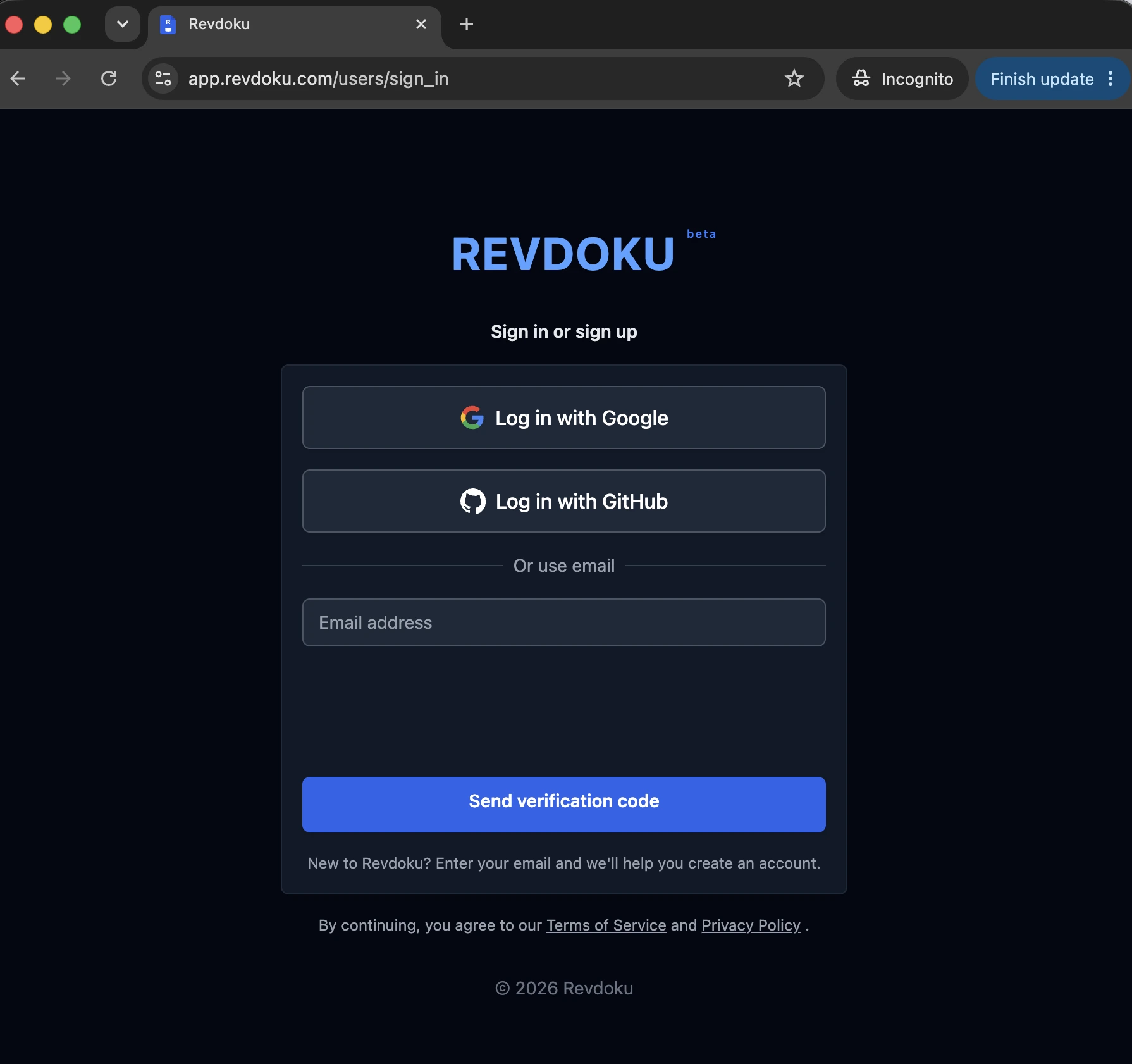
1. Create a Revdoku account
Create an account and sign in.
2. Get the files from Claude
- Claude on the web or desktop: download the files Claude created. For a website, ask for a ZIP or folder containing
index.html. - Claude Code: use the project or build folder on your computer.
Check the output locally before sharing it.
3. Drag and drop into Revdoku
Open the Revdoku dashboard and drop the files or folder anywhere on the page. Revdoku creates a bucket and uploads the contents.
To update it later, open the same bucket and drop the replacement files there.
4. Publish and share
Open the bucket and click Publish. Choose:
- Public for an open link,
- Password for a protected link,
- Require Email to identify visitors.
Copy the live link and share it. Revdoku keeps the bucket available for later updates and shows its viewing activity.
Optional: connect Claude as an AI agent
Use an agent connection when you want Claude to update an existing bucket or publish for you. It is not required for the first upload.
Claude on the web or desktop
- Open Claude’s Settings > Connectors.
- Add a custom connector named
Revdokuwithhttps://app.revdoku.com/mcp. - Connect and allow access to your Revdoku account.
Claude Code
Paste the Revdoku connection prompt into Claude Code. Claude installs or uses the local Revdoku CLI itself, opens browser sign-in, waits for your approval, and continues in the same session. You do not need a second terminal or a continue message.
For screenshots, the optional persistent plugin, and manual fallback commands, see the Claude Code guide.
Then ask Claude to work with that bucket.
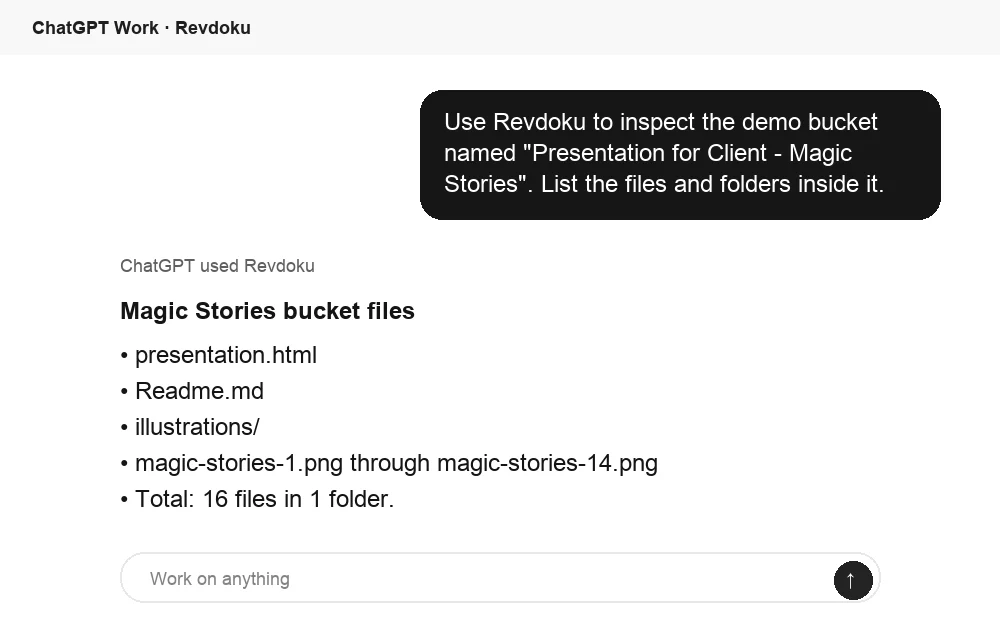
Inspect the Claude output from ChatGPT too
After Claude publishes or uploads files to Revdoku, ChatGPT can inspect the same bucket when Revdoku is connected there too. Use this to list files, confirm the generated folder structure, or ask for a short summary before sharing.